

Run the Mat Control Center
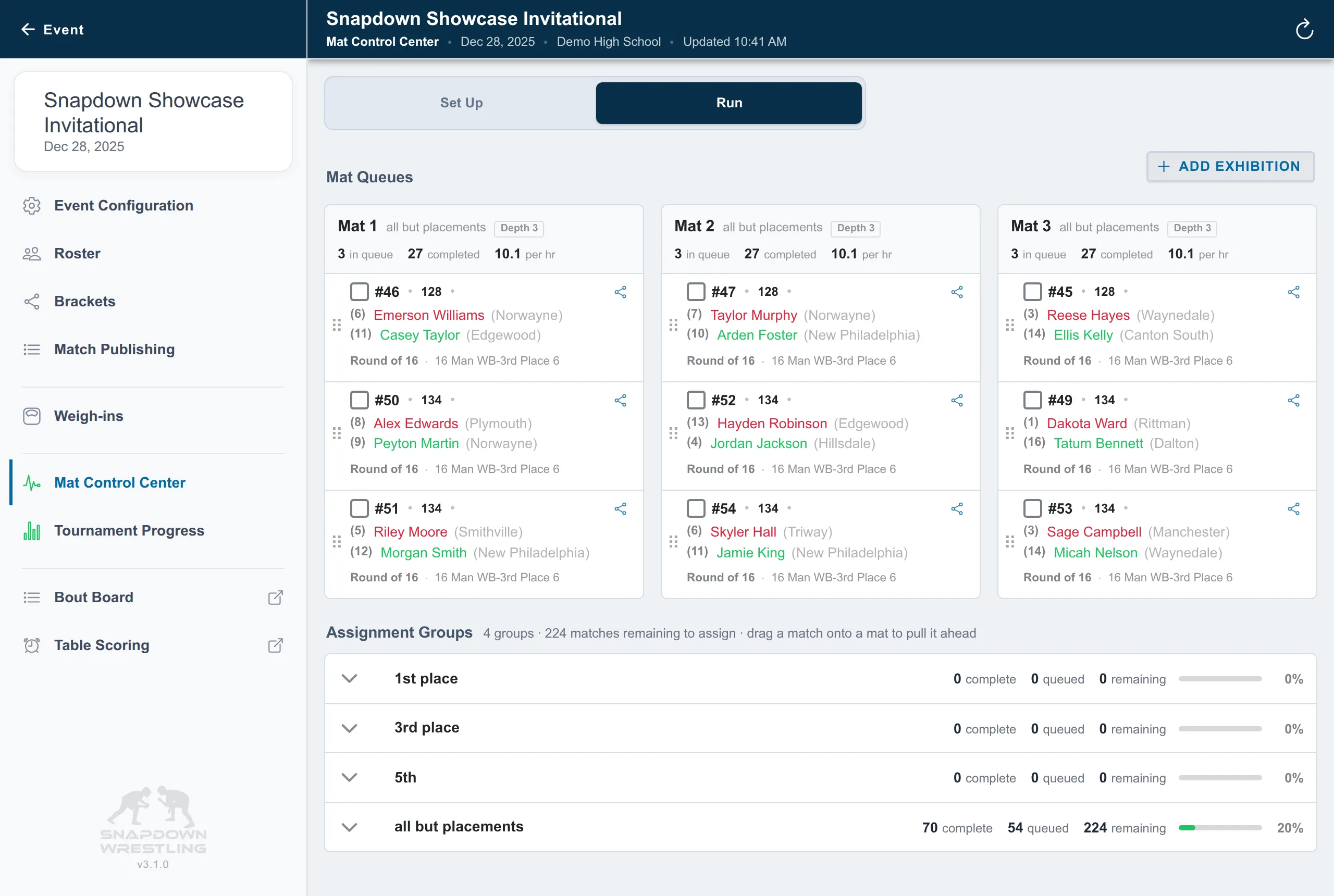
The Mat Control Center is the director’s event-day screen. Use Set Up to prepare mats and choose the rule each one pulls from. Use Run to watch the live queues and move a waiting match when the day changes shape.
You do not score matches here. That happens at each table, on Table Scoring. For how bouts get numbered and queued before they reach this screen, see How matches get onto the mats.
Set up the mats
Section titled “Set up the mats”Matches are not pushed by hand one at a time. Each mat is assigned a group of work, and an active mat pulls its next match from that group automatically as matches complete.
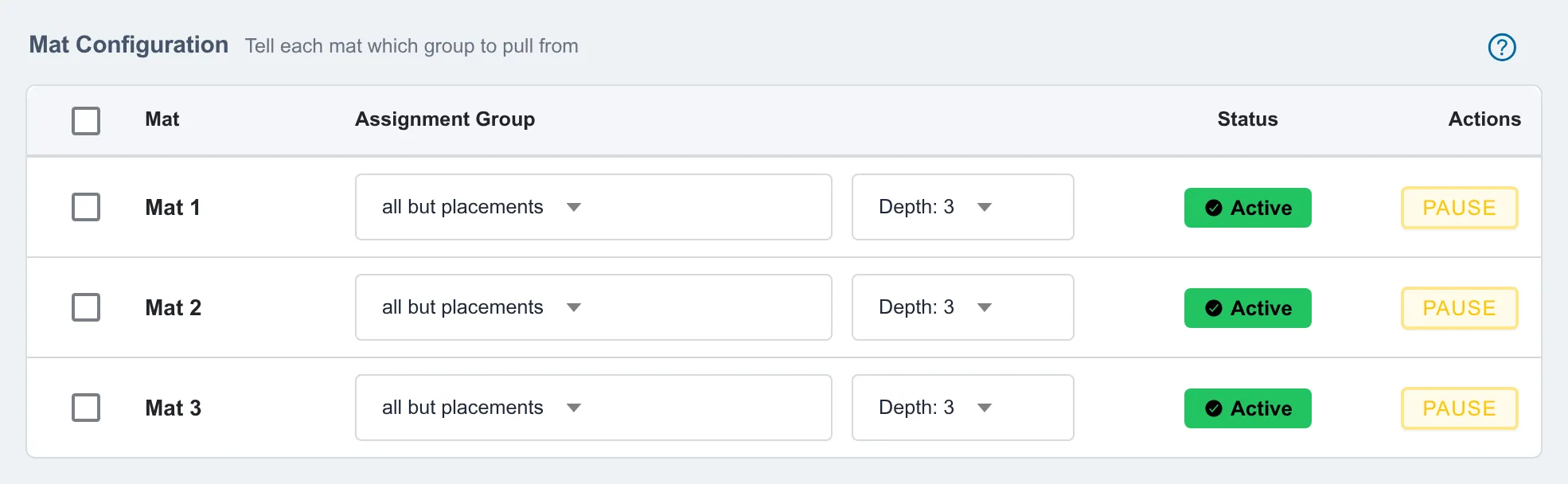
Two settings control each mat in Mat Configuration:
Rule decides which brackets feed that mat. In Director Managed each mat shows Pulls from and the rule’s name. A mat with no rule shows No rule and will sit empty. You can change the rule a mat pulls from mid-tournament, which is how you move a division to a fresh mat when the day changes shape.
Status is Active, Paused, or Inactive. Active mats pull matches from their rule. Pausing a mat stops automatic backfill when its current matches complete, which is what you want during an award ceremony or a mat break. Inactive mats take no work at all.
Queue depth
Section titled “Queue depth”Queue depth is how many matches are staged on a mat ahead of the one being wrestled. Set it from 1 to 8, or All to stage everything.
Depth is set per rule, not per mat. The screen does not make that obvious. Changing depth on one mat changes it for every mat fed by the same rule.
Depth is a tradeoff, and it is really about how early a wrestler gets called:
- Deeper queues call wrestlers to the mat further ahead. Coaches and families get more warning, and the mat is less likely to run dry. The cost is that a wrestler can be staged for a match that is still several bouts away, which is uncomfortable when they also have a bout on another mat.
- Shallower queues keep wrestlers free until close to their bout, at the cost of less notice and less slack when a match ends early.
Depth of 2 or 3 suits most events. Go deeper on a slow-moving mat, shallower when wrestlers are competing across several mats at once. Auto-balance and placement rule sets start at Unlimited, which stages the whole rule.
With Director-Managed Scheduling, both the rule and the depth are editable inline on this screen. With System-Managed Scheduling, the rule and depth come from the generated schedule, and this screen displays them without editing.
Load or replace waiting matches
Section titled “Load or replace waiting matches”Select one or more mats in Set Up, then choose:
- Load — fill open queue slots from each selected mat’s rule. Matches already in the queues stay in place.
- Reload — remove matches that have not started, then refill from each mat’s rule. Matches already started stay in place.
- Unload Waiting — return waiting matches to their rule’s queue. Started, completed, and bye matches stay on the mats.
With Director-Managed Scheduling, Load and Reload open the same Run review used on Match Publishing:
- Load only tops off the selected mats from the queue they already pull from. Bout numbers and queues stay as they are.
- Reload opens the full review with Replace what’s waiting selected. Waiting bouts go back to their queue and the mat refills in running order. Started and finished bouts stay put.
Snapdown confirms each action before changing a queue. You can select a mat before choosing its rule, which is useful when configuring several mats at once, but Load and Reload remain unavailable until every selected mat has a rule.
Run a planned rule
Section titled “Run a planned rule”With Director-Managed Scheduling, a rule can name the mats it is planned for. When one of those mats is free, choose Run… on the planned rule in Set Up, or choose Pull from another rule… to point a mat at a different rule. Both open Run with that mat already selected.
Run checks the brackets, bout numbers, and queue before it touches the mat, and builds anything missing along the way. On the Mats step choose Keep what’s waiting; add new bouts to leave waiting bouts in place, or Replace what’s waiting to send them back to their queue. Nothing changes until you press the button at the bottom of Run. See Create a director-managed tournament flow and finals rules.
Run the mats
Section titled “Run the mats”Mat Queues is the live picture. Read it across all mats rather than one at a time.
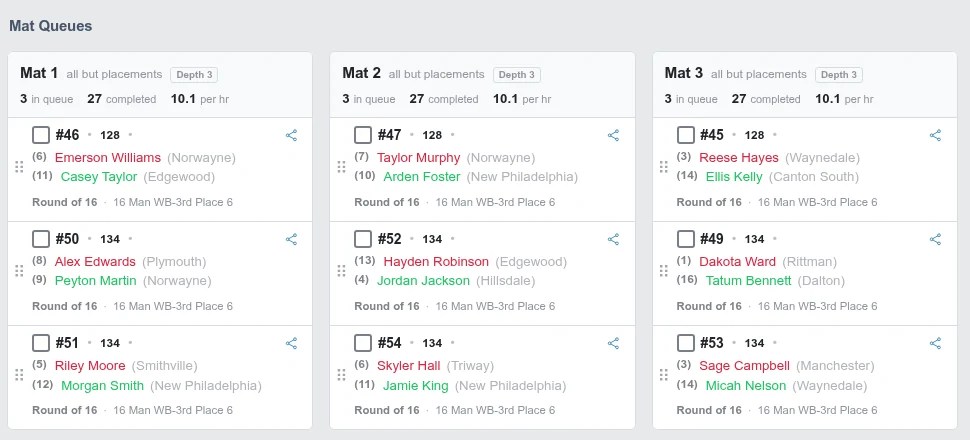
An empty queue while other mats are backed up usually means that mat’s rule is finished, or the mat never had a rule set. Give it a rule with work left, or move a bracket over.
A mat that is not advancing is almost always a match nobody submitted. The table has to choose Submit Completed Match before the next one loads, so walk over and check the mat before assuming the queue is broken.
A paused mat stays where it is by design. Pausing is easy to forget once the ceremony you paused it for is over.
To move waiting work, select one or more matches in Run and choose Move. The compact selection bar stays in the page so it does not cover the queues.
Unloading a mat
Section titled “Unloading a mat”When a mat has the wrong work on it, return to Set Up, select the mats, and choose Unload Waiting. Snapdown confirms first, and the change is reversible: unloading returns waiting matches to their rule’s queue, where they can be loaded again.
Started, completed, and bye matches stay on the mat. That is the part worth understanding before you unload. A bye that already completed also already advanced its wrestler, and unloading does not undo that advancement. Unload clears work that has not begun, not the day’s history.
If the match itself or a rule’s prepared queue is wrong, see Repair matches and rule queues. Unloading a mat only changes waiting mat placement.
The other two event-day screens
Section titled “The other two event-day screens”Directors mix these up at their first event, so name the person as well as the screen.
- Score matches at a table — one screen per scoring table, showing a single match at a time. Used by the table worker.
- Set up the Bout Board — the public display. Wrestlers, coaches, and families read it to know what is up next. Nobody operates it.
Related event-day tasks
Section titled “Related event-day tasks”- Run your tournament from weigh-ins to results
- Add an exhibition match or dual
- Add a late wrestler after publishing
- Follow your wrestler and get mat alerts, for families who want an alert when their wrestler’s match reaches a mat
Also covers: switch schedule · live schedule · schedule queue · planned schedule · assignment group