


The Bout Board is the screen everyone else in the building reads. Put it on a TV or projector where wrestlers, coaches, and families can see it. It can answer either of two questions: what is coming up? or what is happening now?
Open the event in Event Admin and select Bout Board. It opens in a browser tab of its own. Use the gear button in the bottom-right corner whenever you want to change the display.
The first time the Bout Board opens for an event, its settings open automatically so you can choose its job. On a desktop display, the settings remain pinned to the bottom-right while the board previews every change behind them. Close the panel when the board is ready for the room.
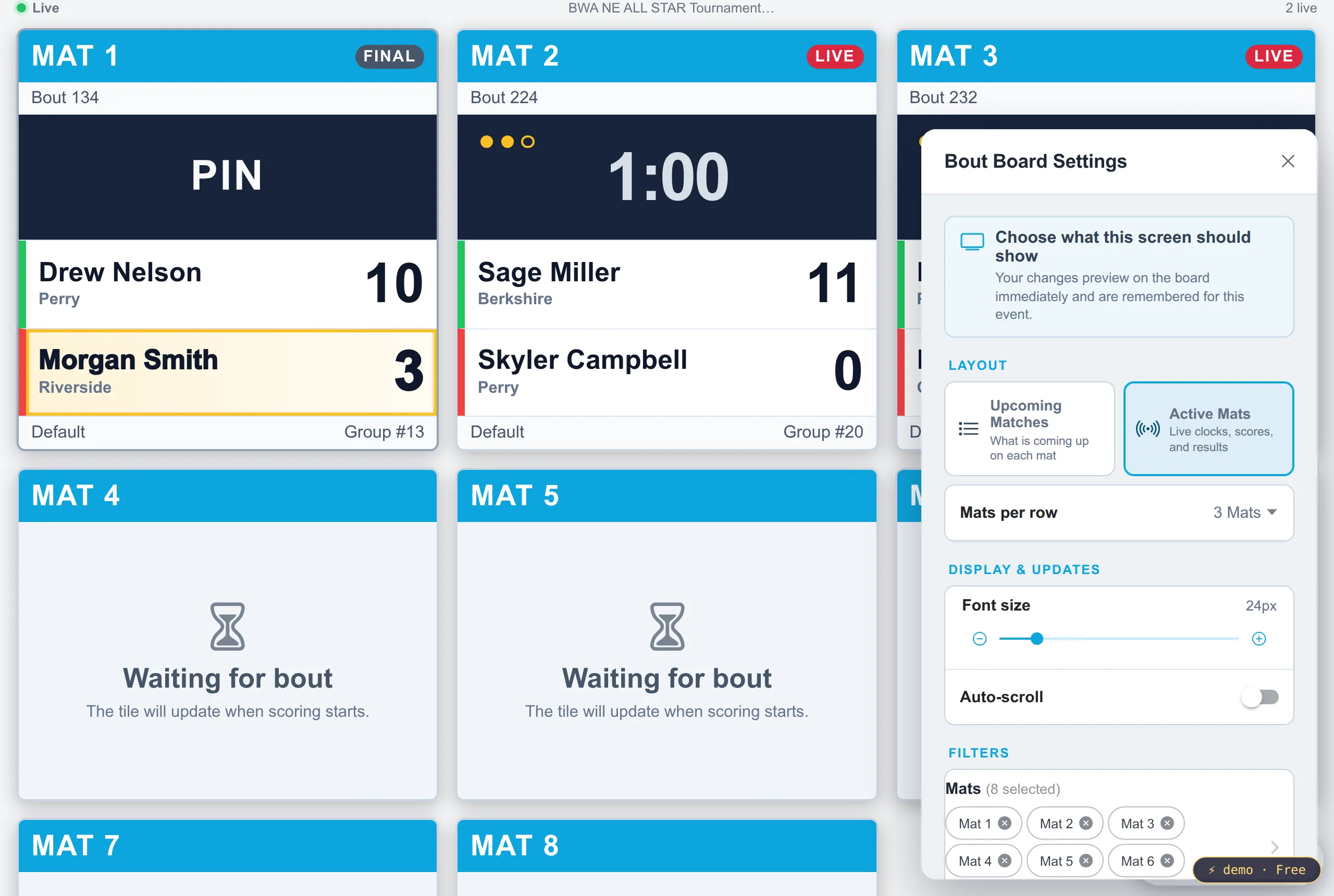
Choose what the board should show
Upcoming Matches
Choose Upcoming Matches for the call board: wrestlers and coaches can see which bout is next on each mat and what follows it. This mode reloads its schedule periodically and shows the refresh countdown at the top.
Colour and labels carry the same meaning in every schedule layout:
- Green, marked Next: the first queued match for that mat.
- Amber, marked +1: the match after Next.
- Grey, marked +2 and beyond: further down the queue.
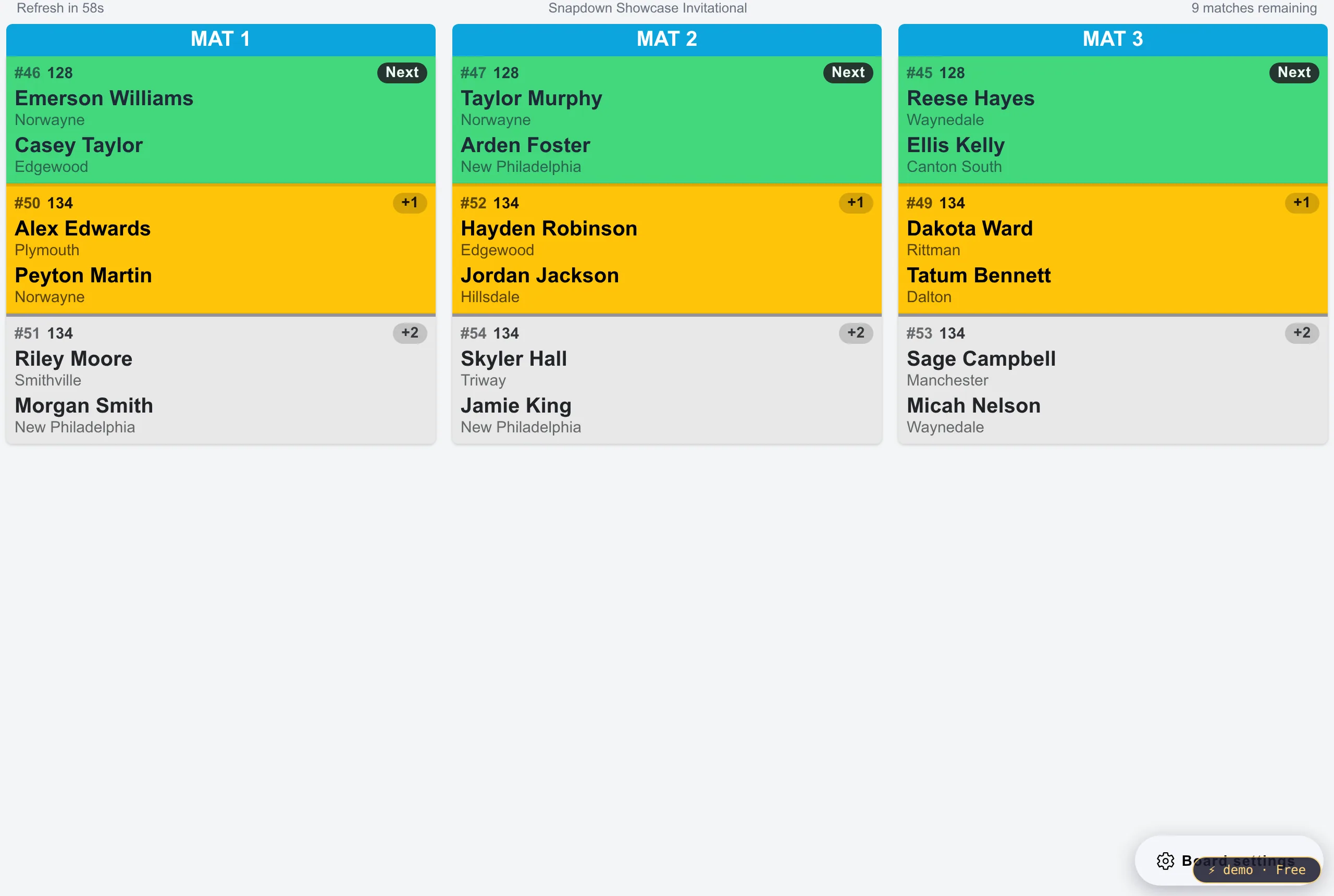
Choose a Schedule layout that fits the display:
- Column per Mat gives every mat a vertical queue. It is usually best for three or four mats on a wide display. Choose full details or bout numbers only, and set how many mats appear in each row.
- Row per Mat places each mat’s queue left to right. It works well on a short, wide display mounted above a doorway.
- Grid View: Up Next combines the mats and sorts bouts by how soon they are up, making it easy to scan for a wrestler’s name.
- Grid View: By Mat uses the same table but keeps each mat’s bouts together.
Use Matches per mat to limit how deep into each queue the board shows. A shorter list at a larger type size is usually easier to read than a complete queue in small type.
Active Mats
Choose Active Mats when the display should behave like a venue scoreboard. This mode subscribes to live scoring updates rather than waiting for the schedule refresh. Each selected mat keeps a stable tile, so the layout does not jump when a bout starts or ends.
A live tile shows the bout number, period dots, clock, wrestlers, teams, and scores. The clock changes appearance when it is running or stopped. When the bout finishes, the scoring band shows the result, such as Pin, in the same space the clock occupied, and the winning wrestler is highlighted. That highlight is the result to trust when a pin, default, or other finish means the larger displayed score did not determine the winner.
Mats without an active bout remain visible as Waiting for bout tiles. This makes the board predictable for spectators and makes it obvious which scoring tables have not started their next match.
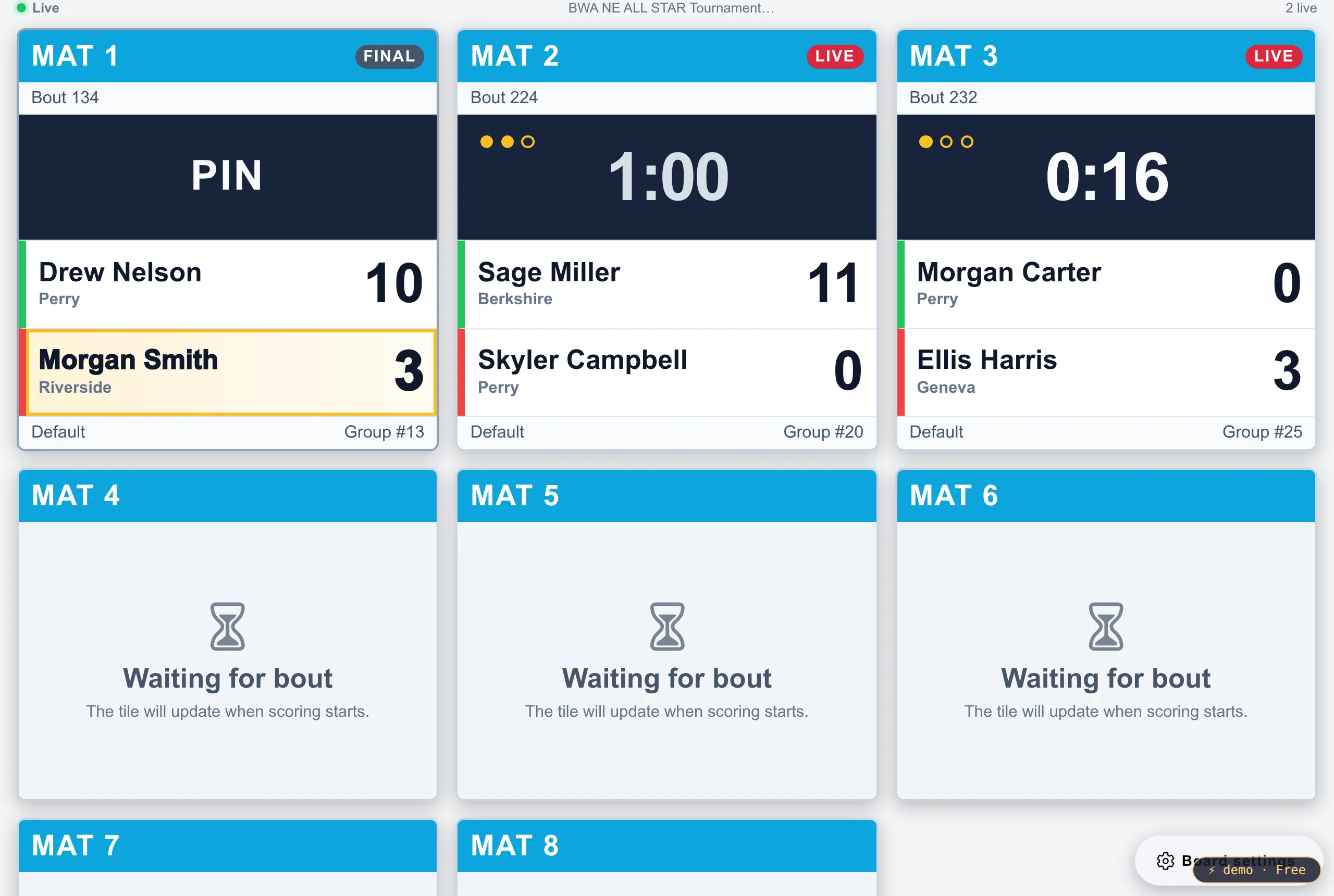
Size it for the room
Set Mats per row to balance tile size against the number of mats. With eight mats, for example, three per row produces much larger names and clocks than trying to fit all eight across one line.
Use Font size while looking at the actual board behind the settings panel. Then walk to the farthest normal viewing point and make sure names, bout numbers, and scores are still readable.
Choose mats and divisions
Use the Mats filter to show every mat or only a selected set. This is useful when one display serves a subset of the room or when part of the venue is not in use.
Upcoming Matches can also be filtered by division. For a multi-session event, show only the divisions currently competing so later-session wrestlers do not scan through irrelevant bouts. Active Mats shows whatever is currently being scored on the selected mats, regardless of division.
Let a long schedule scroll
In Upcoming Matches, turn on Auto-scroll when the selected layout contains more rows than fit on the screen. Choose a slow, medium, or fast scroll speed. The board pauses at the top and bottom so people have time to read before it continues or returns to the beginning.
Snapdown enables auto-scroll automatically when a Column per Mat layout wraps onto multiple rows. You can turn it off if the whole board is already visible.
Keep the display running
Use a dedicated browser window in full-screen mode and prevent the computer or TV from sleeping during the event. The status at the top-left reports whether Active Mats is connected to live scoring. If it reports Offline or Reconnecting for an extended period, confirm that the display has internet access and reload the page.
Related guides
- Run the Mat Control Center, the director’s screen, which decides what appears here.
- Score matches at a table, the scoring table’s screen.