


Table Scoring is the screen the person at a scoring table uses. It shows one match at a time: the two wrestlers, the clock, and a scoring button for every call the referee can make.
This is a different screen from the Mat Control Center, which is where the director assigns matches to mats. A table worker only needs this page.
What to put at each scoring table
We recommend a laptop or Chromebook for the scorer, plus an external monitor or TV facing the mat. The scorer works on the laptop and everyone around the mat reads the score off the second display.
See Recommended hardware for scoring tables for computer specifications, ports, power, network backups, and a per-table equipment checklist.
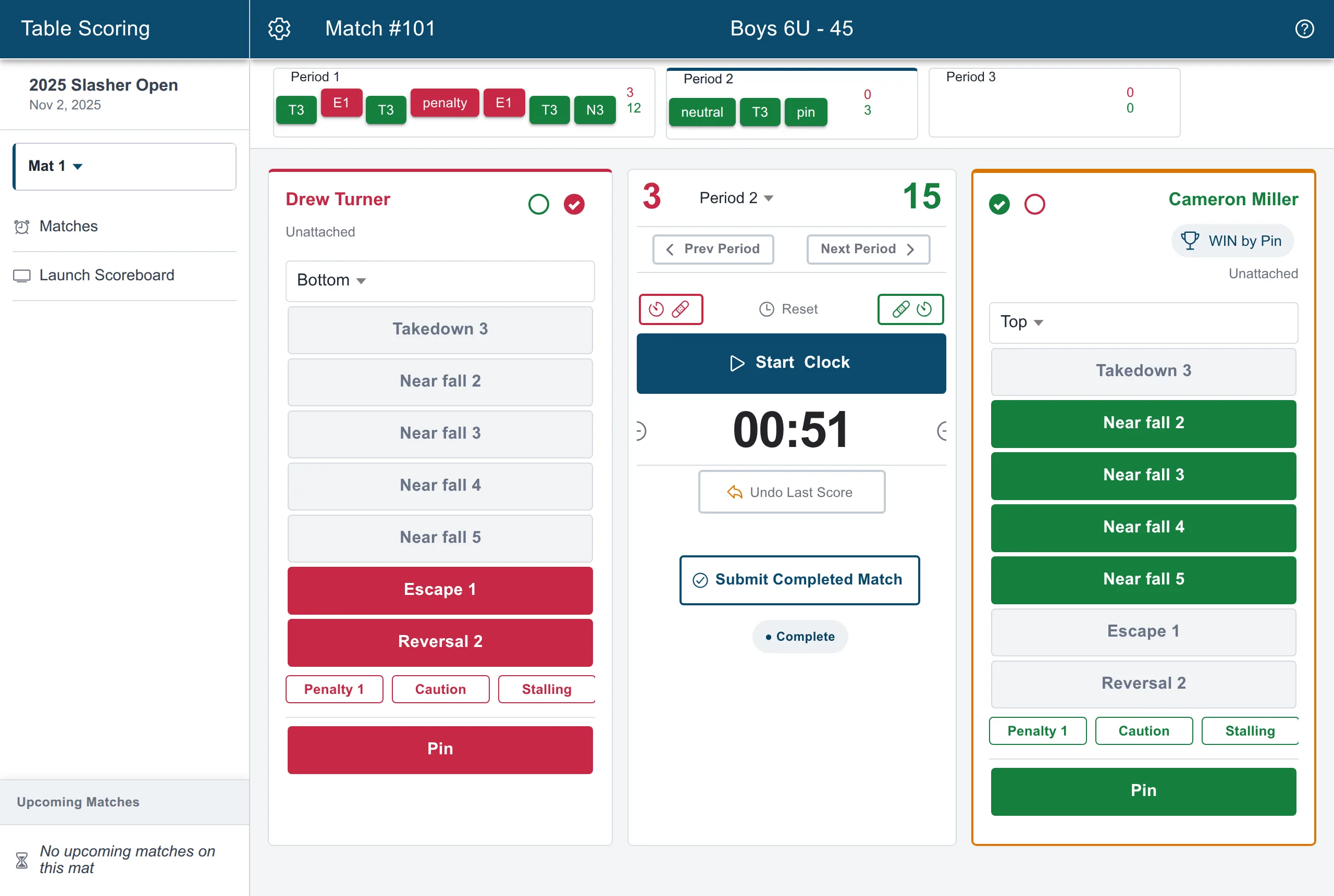
To drive the second display, choose Launch Scoreboard in the sidebar. It opens a separate window showing live scoring for the audience. Drag that window onto the external monitor, then make it full screen: press F11, or use the full-screen button on a Chromebook.
A phone works too. The phone layout is purpose-built rather than a shrunken desktop screen, and the event runs correctly either way.
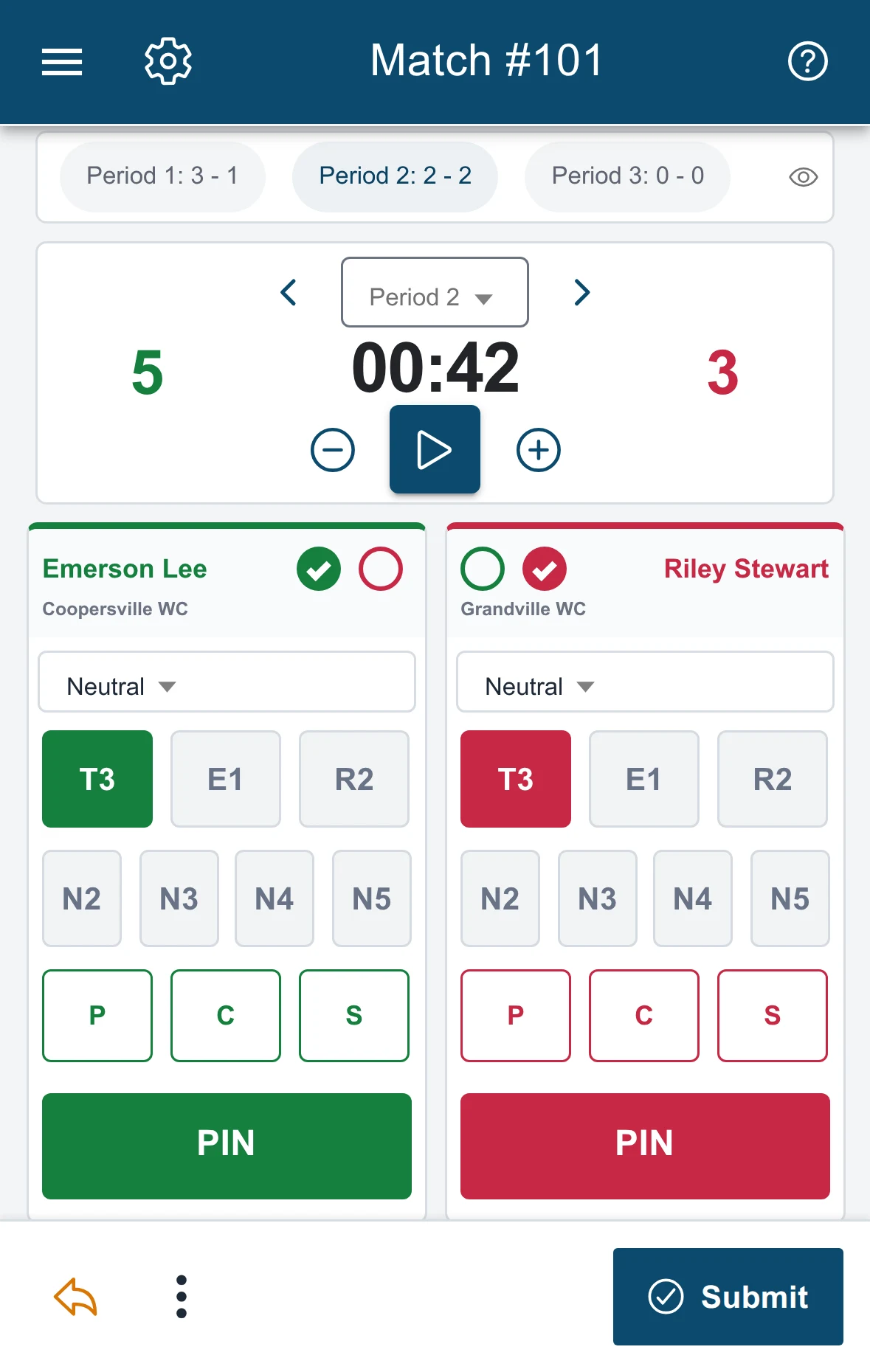
Sideways gives the full board, with each period’s scoring along the top.
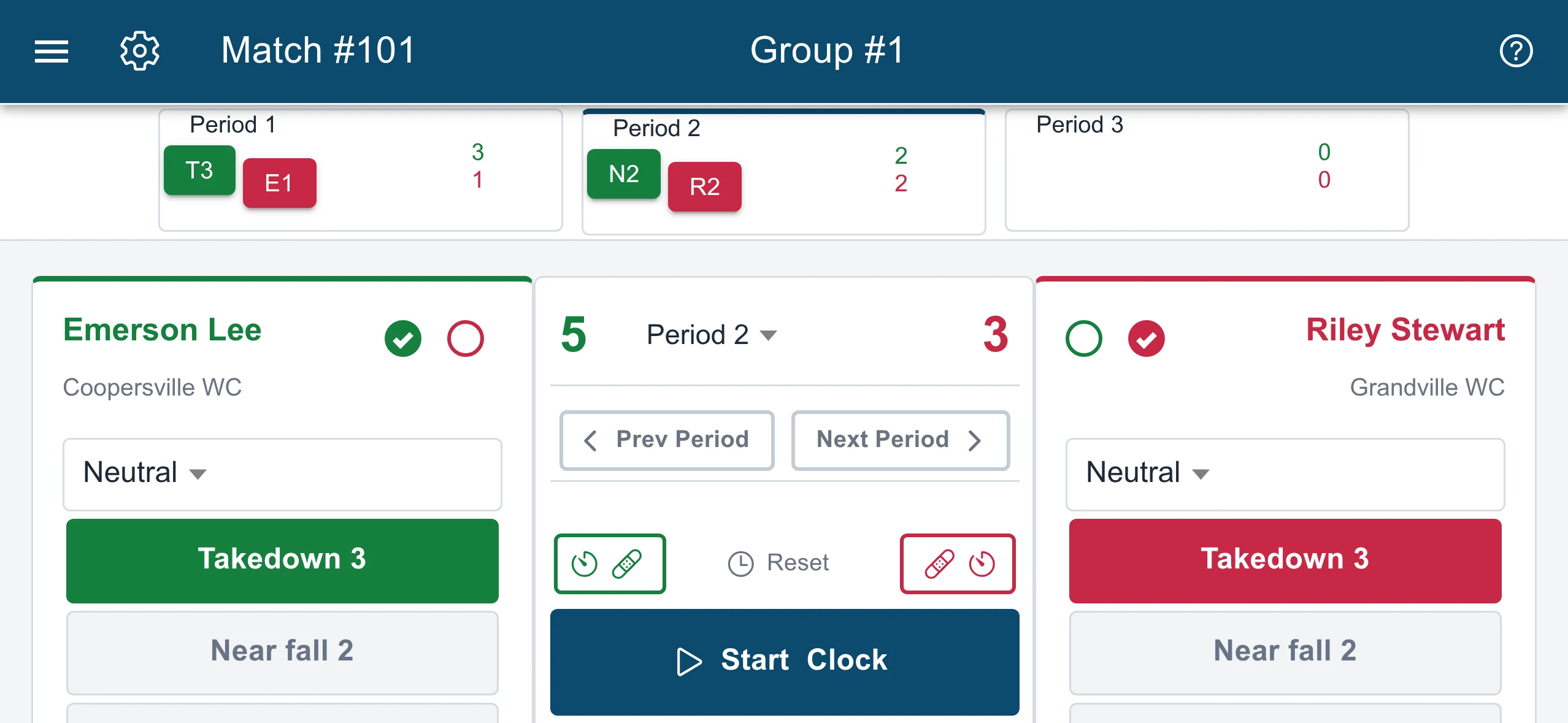
What a phone-only table costs you is the mat-side display, not any scoring ability. Coaches and spectators are the ones who lose out.
Getting to your match
- Sign in on the device at the table.
- Open the event and choose Table Scoring from the event menu.
- Pick your mat from the selector at the top of the sidebar. Until you do, the screen shows a red Select a mat above warning.
- Open Matches and choose the match at the top of the queue.
Table Scoring only appears for staff who have the Score permission on that event. Permissions are granted per event, so a table worker at last month’s tournament is not automatically a scorer at this one. See Add event staff and permissions.
On a phone or tablet running the Snapdown app, choosing Table Scoring opens your web browser. That is deliberate. Scoring always runs the current web version.
The sidebar also lists Upcoming Matches for the mat you selected, so the table can see what is coming without leaving the match they are on.
Scoring a match
Start the clock, then award points as the referee signals them. Each wrestler has their own set of buttons:
| Button | Call | Points |
|---|---|---|
| T1, T2, T3 | Takedown | 1, 2, or 3 |
| E1 | Escape | 1 |
| R2 | Reversal | 2 |
| N2, N3, N4, N5 | Near fall | 2, 3, 4, or 5 |
| P | Penalty | varies |
| C | Caution | 0 |
| S | Stalling | varies |
| Pin | Pin | ends the match |
Which buttons appear depends on the match settings for that division, so a freestyle or modified-rules division will not show the same set as a folkstyle one.
Two things worth knowing before your first match:
Scoring does not stop the clock. Award points with the clock running, the way the match actually happens. The clock stops on its own only for a pin or when you open a blood or injury timer.
Choosing Pin ends the match. It stops the clock and records the winner and the result in one action. You do not also need to set a winner by hand.
Move between periods with the arrows either side of the period label. The clock can be nudged up or down with the plus and minus buttons when it needs to match the official time.
Fixing a mistake
Undo Last Score removes the most recent scoring action. It asks you to confirm, naming the action and how many points come off. It works one step at a time, from the end backward, so undoing something three actions ago means undoing the two after it first.
If the whole match was scored on the wrong sides, tap any logged score and choose Swap all scoring events. Do this at the end of the match rather than mid-period.
Anything that reaches past this match, such as the wrong wrestler being entered in the bracket at all, is fixed elsewhere. See Fix a duplicate wrestler or wrong weight class.
Finishing the match
Choose Submit Completed Match. The button stays disabled while the clock is running, so stop the clock first. A status pill under the button tracks where the match stands: Not started, In progress, or Complete.
Submitting sends the result to the event. The bracket advances, team scores update, and the result reaches the Bout Board and the families following on the app. Then return to Matches and open the next one.
If the connection drops
The gym wifi does not have to be perfect. Scoring keeps working, and the sidebar shows a count of pending updates with a sync button next to it. When the connection returns, those updates go up. Do not close the browser while updates are still pending.
Where this fits
- Run the Mat Control Center — the director’s side: which matches reach this table and in what order.
- Set up the Bout Board — the public display showing everyone what is up next.
- Run your tournament from weigh-ins to results — the whole event-day sequence.