

Keep each bracket on one mat
Youth events often want each bracket on one mat, so a wrestler and their coach always come back to the same place. Auto-balance brackets spreads the brackets across your mats by bout count and keeps every bout of a bracket, finals included, on that bracket’s mat.
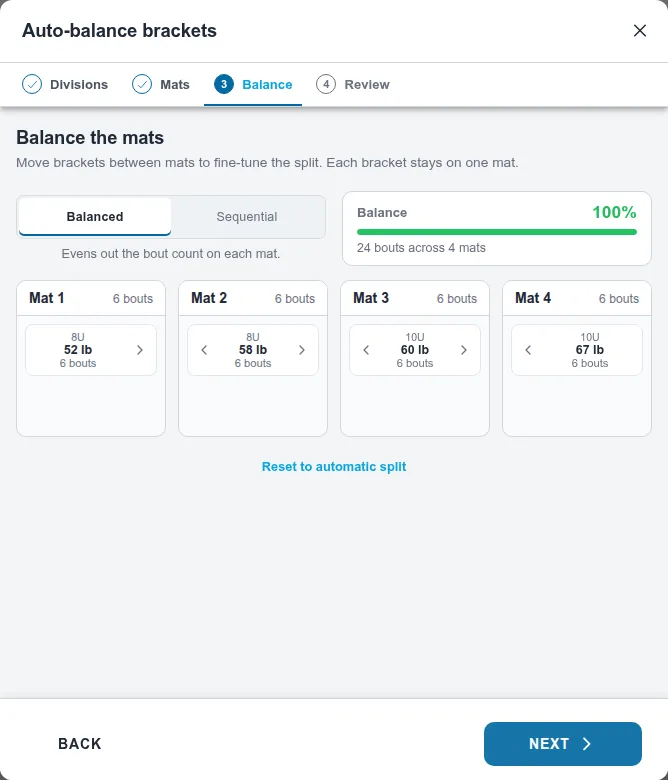
Example: 8U and 10U, four brackets, on Mats 1–4.
Set it up
Section titled “Set it up”- On Match Publishing, choose Auto-balance brackets.
- Divisions: name the plan, keep or change the Session, and tick 8U and 10U.
- Mats: pick Mats 1–4. One mat works too. Under Advanced, Queue depth defaults to Unlimited; choose a limited depth if you want only a few bouts waiting on each mat.
- Balance: choose Balanced to even out bouts per mat, or Sequential to keep division and weight order together as the mats fill. Move a bracket to the previous or next mat with its arrows when you want it somewhere specific.
- Review: each mat shows its bout count and number range. Choose Save plan.
The wizard saves one plan containing a rule per mat. Each mat gets its own number range: Mat 1 from 101,
Mat 2 from 201, and so on. In session 2 they read 2-101, 2-201. If one mat has more than 100 bouts,
the ranges widen on their own. Session 3 prefixes each range with 3-, and so on; see
How session numbers affect bout numbers.
Brackets not ready yet? On the Mats step choose Save for later. The saved setup waits on Match Publishing. Once its brackets exist, its button reads Balance brackets….
Run it
Section titled “Run it”Choose Run… on the plan’s row. It runs all of its mats together. Build any missing brackets when Run asks, then choose Load N bouts.
When to use something else
Section titled “When to use something else”Auto-balance never splits a bracket. If you want finals on a featured mat, or mats to share one queue so nobody waits on a busy mat, use Guided plan instead. See Plan your tournament schedule.
Also covers: plan a schedule