

Collect registration questions and sell add-ons
Registration can collect event-specific details alongside a wrestler’s division and weight. Use custom questions for information your event needs, and add-ons for optional or required items that belong in the same checkout.
Open your event, then Event Configuration → Registration & Promotion → Registration. The registration workspace is ordered Registration, Pricing, Questions, Add-ons, Discounts.
Configure the form while Online registration is off if you want to work in private. The settings are saved as a draft until you turn registration on.
Decide what to ask for each wrestler
Section titled “Decide what to ask for each wrestler”Every custom question belongs to one wrestler entry, not to the order as a whole. If a parent registers two wrestlers, Snapdown saves two independent sets of answers.
That makes custom questions a good fit for:
- county and state of travel;
- a shirt size connected to an optional shirt purchase;
- a seed, experience level, or coach note; and
- wrestler-specific information the director needs before the event.
Do not ask for information you will not use. A shorter form is easier for families to finish and easier for staff to review.
Build the questions
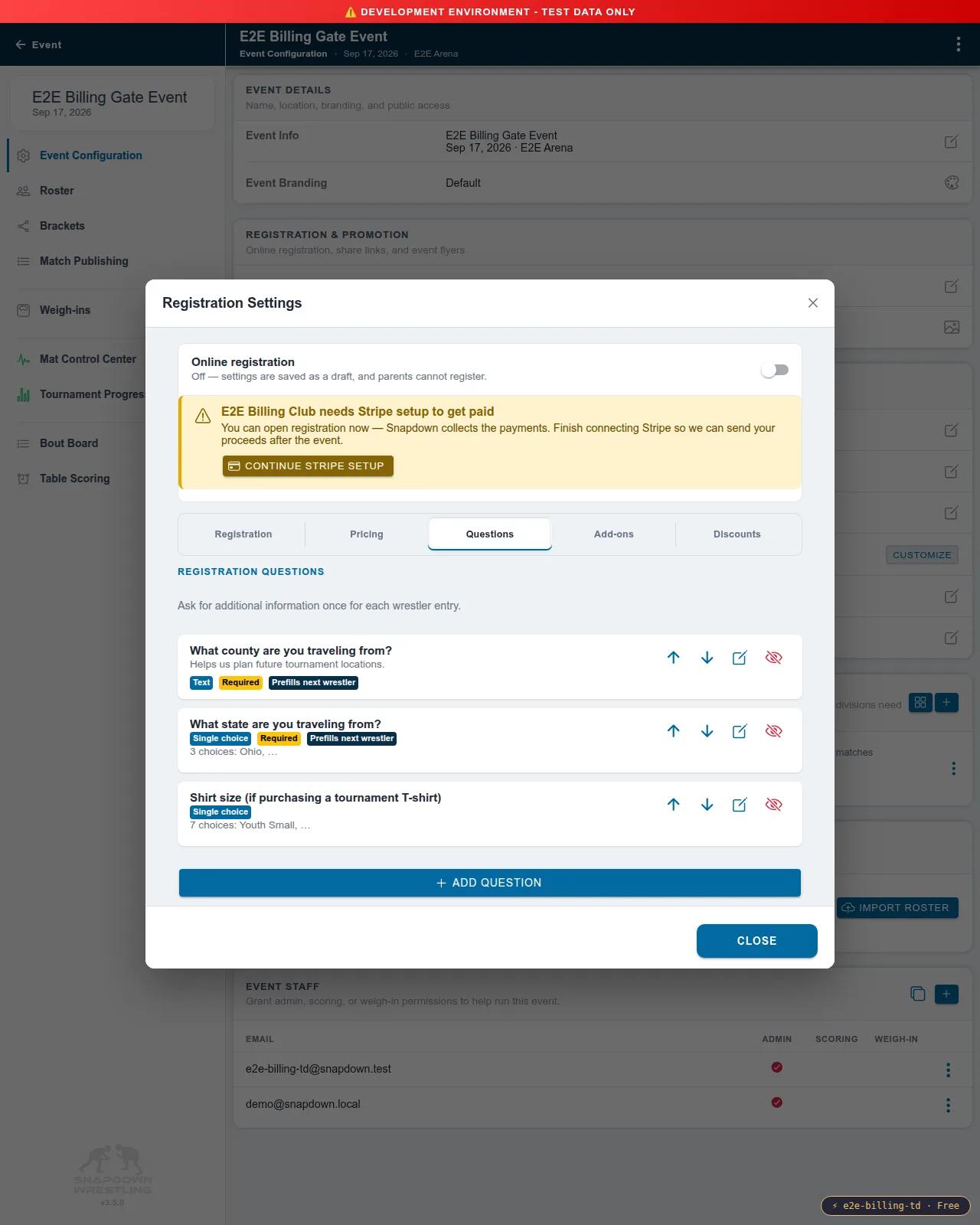
Section titled “Build the questions”Open Questions and choose Add Question. Each question supports:
- Text, for a short free-form answer such as a county;
- Single choice, for a list controlled by the director;
- Required, which prevents the wrestler from being added until it is answered; and
- Prefill for the next wrestler, which reuses that answer when the parent adds another wrestler to the same order.
For a single-choice question, enter one choice per line. Use the arrow buttons on the question card to control the order families see. The CSV keeps current questions in that configured order.
Use prefill selectively
Section titled “Use prefill selectively”Prefill is off by default. Turn it on for answers that normally apply to the whole household, such as county, state, parent name, or parent phone number. It saves a family from typing the same answer for every wrestler, but they can still change the copied value.
Leave it off for wrestler-specific or sensitive answers. A medical condition, shirt size, grade, or experience level should start blank for the next wrestler unless you have a strong reason to copy it.
A practical travel-location form
Section titled “A practical travel-location form”If your goal is deciding where to host future tournaments, a useful starting form is:
- What state are you traveling from? — Single choice, Required, Prefill on.
- What county are you traveling from? — Text, Required, Prefill on.
A controlled state list keeps state names consistent. County is often easier as text because county lists vary by the states your event reaches. The CSV export puts each question in its own column, which makes the responses easy to group in a spreadsheet.
Offer add-ons
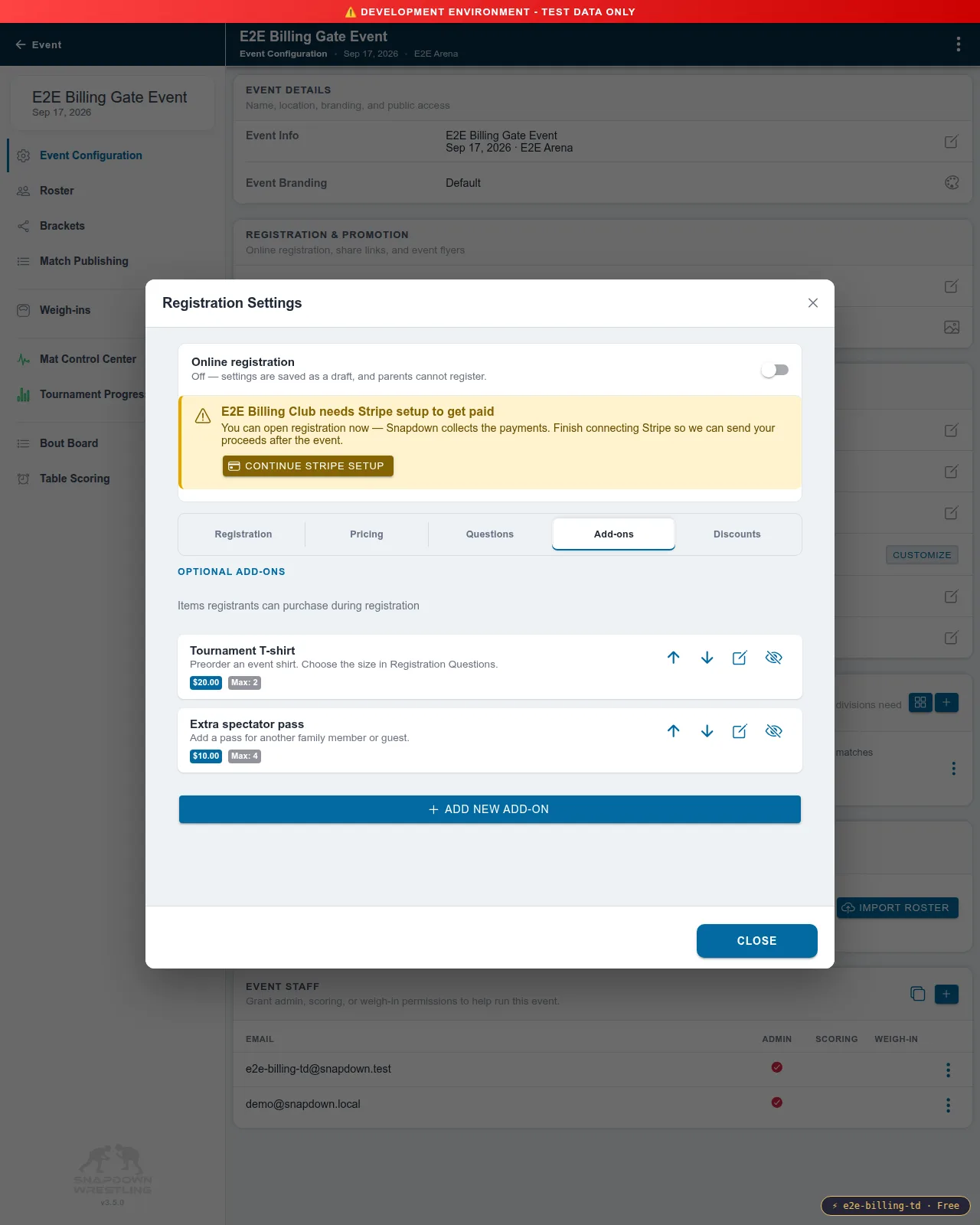
Section titled “Offer add-ons”Open Add-ons and choose Add New Add-on. Give the item a clear name and description, set its price, and set the maximum quantity one wrestler may buy. Zero-dollar add-ons are allowed.
Turn on Required only when every registration entry truly needs the item. Required add-ons are selected automatically and cannot be removed by the registrant. Most merchandise and extra passes should remain optional.
Use the arrow controls to set display order. The crossed-out eye removes an item from future registration without erasing it from registrations that already purchased it; an inactive item can be restored later.
Sell a shirt with sizes
Section titled “Sell a shirt with sizes”The current shirt workflow uses two fields:
- Create an optional Tournament T-shirt add-on with its price and maximum quantity.
- Create an optional Single choice question named Shirt size (if purchasing a tournament T-shirt) with the sizes you offer.
Put the size instruction in the add-on description so the relationship is clear. Keep the size question optional: Snapdown does not currently make a question required only when a particular add-on is selected. The registrant chooses the shirt and size separately, and the director should check for a missing size before placing the order.
Add-on variants and item photos are not available yet. Today, each add-on has one price and text description.
Understand the checkout total
Section titled “Understand the checkout total”When the wrestler is added to the order, Snapdown validates the current add-on price and quantity on the server and saves them with that entry. Checkout uses that saved selection; a price stored only in the browser cannot change what the purchaser is charged.
Discount codes reduce the registration fee, not add-ons. Add-ons are part of the tournament amount and follow the registration’s refund policy. Adding an item does not create another per-entry Snapdown Platform Fee; the wrestler’s registration remains one billing entry.
Review answers and purchases
Section titled “Review answers and purchases”Open the event’s Registrations tab. Use the three-dot menu on an entry and choose View registration details. The detail view shows Additional information and Add-ons, including quantity and the price captured when the registration was submitted.
For analysis or fulfillment, open the Registrations toolbar menu and choose Export CSV. The file includes:
- one column for every configured question;
- historical question columns when an older answer still exists;
- one quantity column for every current or previously purchased add-on; and
- an Add-ons Total column.
That export is the easiest way to group entries by county or state, build a shirt order by size, or prepare an add-on fulfillment list.
Reuse the form on another event
Section titled “Reuse the form on another event”From Event Configuration, use Copy Settings on the source event and include Registration. On the destination event, use Apply Settings and paste or upload the settings file.
Registration settings copy the questions, choices, order, Required and Prefill settings, and add-on definitions. The destination receives independent copies, so editing next month’s event does not change this month’s event.
Applying Registration settings can replace the destination’s current form. Read the preview before applying, especially on an event that already has registrations. Existing submitted answers and purchases remain available from their saved snapshots even after a question or add-on is renamed or archived.
Before opening registration
Section titled “Before opening registration”Run through the form once as a registrant and check these four things:
- Required questions block an incomplete entry.
- Prefill appears only on the household answers you selected.
- Each add-on shows the right price and maximum quantity.
- A shirt or similar item clearly tells the purchaser where to choose its option.
Then turn on Online registration. For the rest of the registration setup, see Set up online registration.