

Run morning and afternoon sessions
Split a tournament into sessions when divisions wrestle at different times on the same mats, like younger kids in the morning and older kids in the afternoon. Each session gets its own plan. You set both up ahead of time, then run each one when it’s time to wrestle.
This guide uses one example:
| Session | Divisions | Mats | Bout numbers |
|---|---|---|---|
| 1, Morning | 8U, 10U | Mats 1–4 | 1, 2, 3… |
| 2, Afternoon | 12U, 14U | Mats 1–4 | 2-1, 2-2, 2-3… |
The session sits in front of every afternoon bout number, so a coach can tell a morning bout from an afternoon bout at a glance. Session 1 keeps ordinary numbers; session 3 uses 3-1, 3-2, and so on. The prefix applies to every numbering rule in the plan, including separate queue ranges. A session number doesn’t set a start time: you decide when to run it. See How session numbers affect bout numbers.
If the sessions need separate registration, staff, or results pages, create separate events instead. A session divides the work inside one event.
1. Switch to Director-Managed Scheduling
Section titled “1. Switch to Director-Managed Scheduling”New tournaments start in System Managed, which runs every division together. On Match Publishing, the note that your divisions will share the mats in one running order has a Switch to Director Managed button. Choose it and confirm. Switching doesn’t build or number anything.

2. Create the morning plan
Section titled “2. Create the morning plan”- On Match Publishing, choose Guided plan.
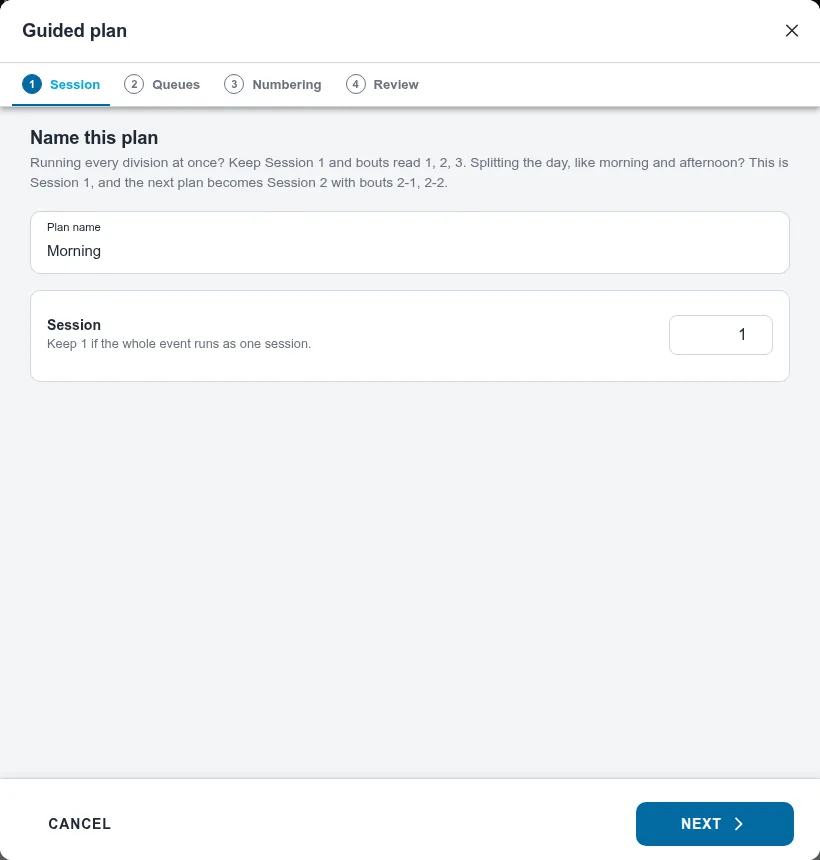
- Name this plan: name it
Morning. Keep Session at 1; the next plan becomes session 2. - Queues: pick 8U and 10U, and Mats 1–4.
- Numbering: keep One sequence for this plan and Start at 1.
- Review: choose Save plan.
3. Create the afternoon plan
Section titled “3. Create the afternoon plan”- Choose Add, then Guided plan.
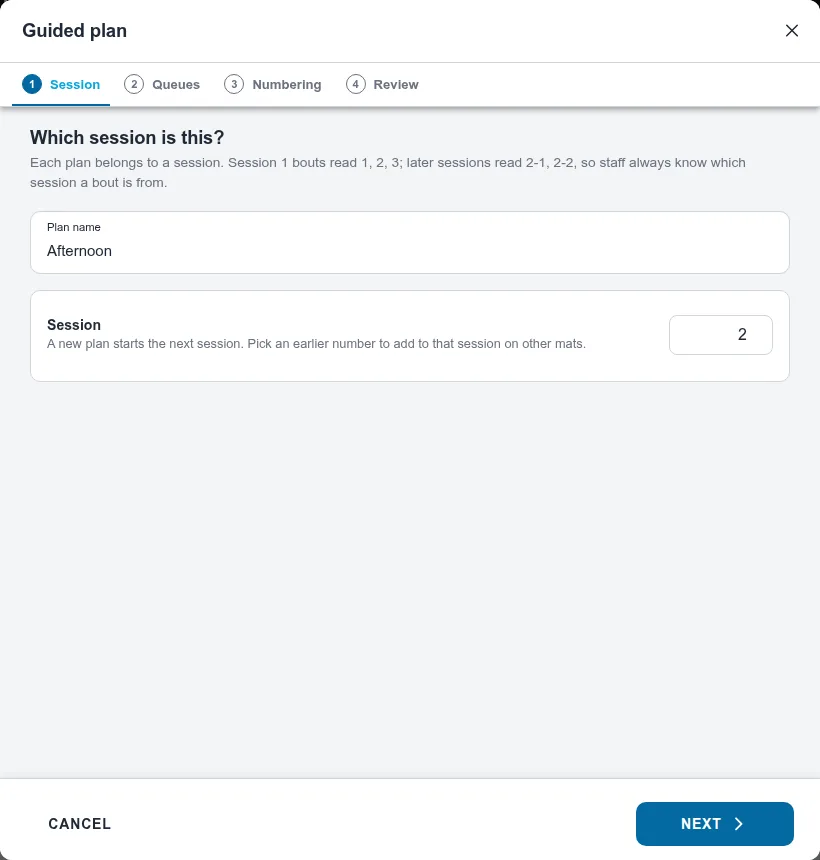
- Which session is this? Name it
Afternoon. Session is already 2, because a new plan starts the next session. - Queues: pick 12U and 14U, and Mats 1–4. Session 2 can reuse the morning’s mats. If these divisions have medal bouts or pools, a Stages step follows; keep its defaults.
- Numbering: keep One sequence for this plan and Start at 1. The wizard shows the labels: 2-1, 2-2…
- Review: choose Save plan.
Match Publishing now shows both plans, each with its session on the summary line. Neither has run, so nothing is numbered or on a mat yet.

4. Start the morning session
Section titled “4. Start the morning session”After morning weigh-ins, choose Run… on Morning. Run checks four steps:
- Brackets: if the morning brackets aren’t built yet, choose Build N brackets, then Build matches & continue.
- Bout numbers: the morning bouts get numbers starting at 1.
- Queue: the bouts line up in running order.
- Mats: Mats 1–4 are ticked from your plan, with Keep what’s waiting; add new bouts selected.
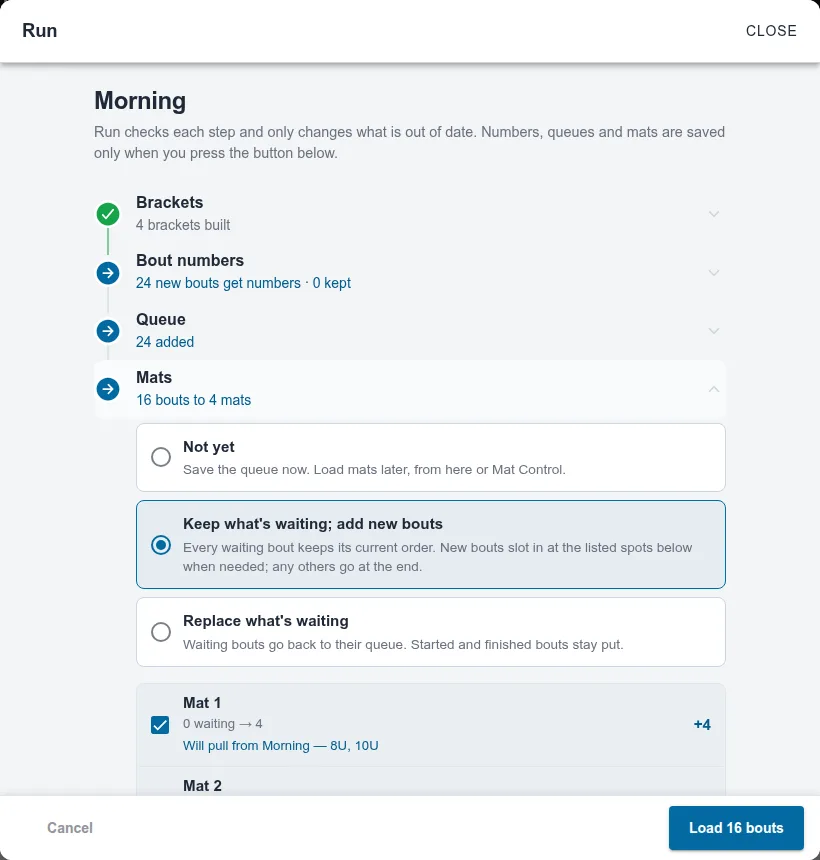
Choose Load N bouts. The mats fill with morning bouts. Run lists the afternoon divisions under Not scheduled yet and leaves them alone.
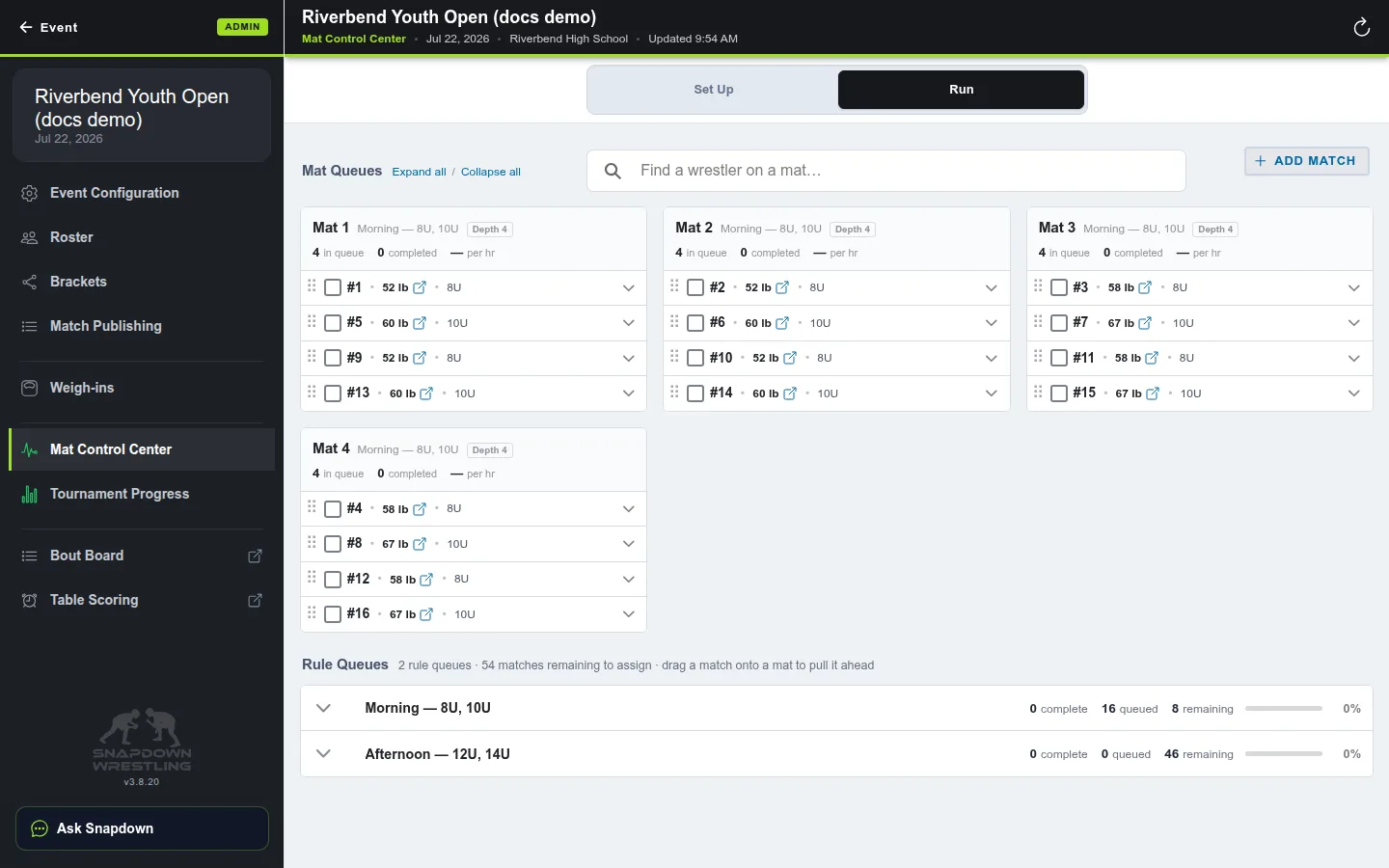
To check, open Mat Control Center and choose the Run tab. Rule Queues at the bottom shows how many morning bouts remain.
5. Get the afternoon ready while the morning wrestles
Section titled “5. Get the afternoon ready while the morning wrestles”After afternoon weigh-ins, you can build and number the afternoon without touching the mats:
- Choose Run… on Afternoon.
- Build its brackets when Run asks.
- On the Mats step, Not yet is already picked. While the morning still has bouts to load, Run says the mats are still running Morning and holds the afternoon back.
- Choose Save queue.
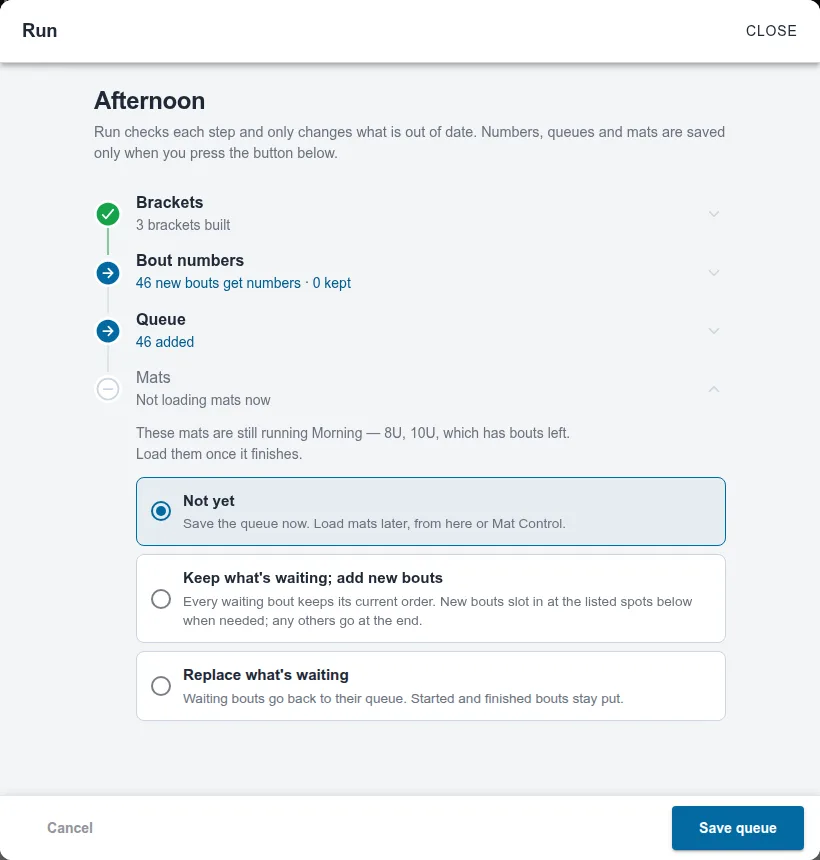
The afternoon bouts are now numbered 2-1 onward and waiting. The mats keep running the morning.
Don’t load the afternoon onto the mats while morning bouts are still waiting in the morning queue. Run points every mat at the afternoon, and the morning bouts that aren’t on a mat yet have nowhere to go. Run warns you that bouts “won’t reach a mat on their own” and won’t continue until you tick I understand, run anyway. If you see that warning mid-morning, go back and choose Not yet.
6. Hand the mats to the afternoon
Section titled “6. Hand the mats to the afternoon”Watch Rule Queues in the Mat Control Center. When the morning shows no bouts left to queue, every remaining morning bout is already on a mat.
- Choose Run… on Afternoon again.
- On the Mats step, Keep what’s waiting; add new bouts is already selected. Each mat shows the morning bouts waiting on it and Will pull from Afternoon — 12U, 14U.
- Choose the button at the bottom. While the mats are still full of morning bouts it reads Switch 4 mats to Afternoon — 12U, 14U. If a mat has room, it starts with Load N bouts and loads afternoon bouts onto it as well.
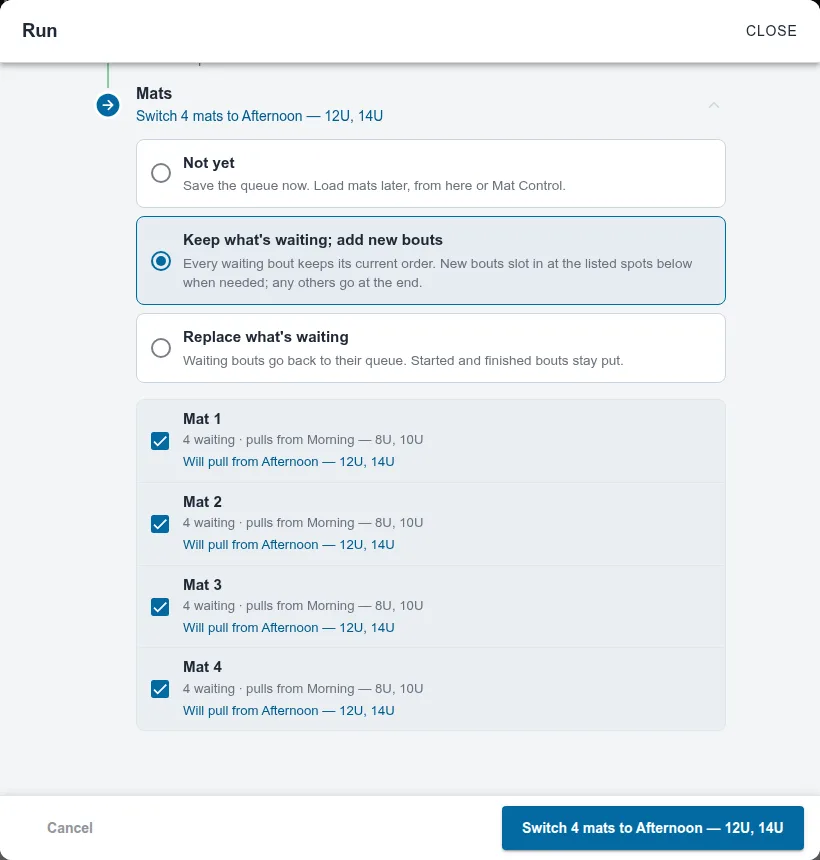
Each mat finishes the morning bouts already on it, then continues with afternoon bouts. Don’t choose Replace what’s waiting for a handover: it takes the waiting morning bouts off the mats.
Variations
Section titled “Variations”- Each bracket on one mat: use Auto-balance brackets for each session instead. It has the same Session field. See Keep each bracket on one mat.
- Divisions on their own mats at the same time: use one session with a queue per mat group. See Give divisions their own mats.
- A session across two days, or only some rounds today: see Schedule a two-day tournament.
If something changes
Section titled “If something changes”If you change a bracket after its session is running, its plan shows N need attention. Choose Run… on it; Run updates the changed brackets first. Leave Renumber everything off and use Keep what’s waiting; add new bouts on that session’s mats. A wrestler-only edit keeps its bout numbers. If a bracket gains or loses bouts or rounds, only that bracket’s unwrestled bouts are renumbered in round order, using suffixes when needed. Other brackets and sessions keep their numbers. See How do I change brackets after publishing matches?. To change the plan itself, see Change a plan after it runs.
Related: Plan your tournament schedule.
Also covers: plan a schedule · add plan or schedule · schedule queues