

Merge live assignment groups without stopping the mats
When one part of a tournament falls behind, you can combine its work with another rule without emptying the live mats first. This uses Director-Managed Scheduling. To combine brackets rather than mat queues, see Handle small weight classes and combine brackets.
The safe pattern is prepare, review, then switch, all through Run…:
- Run the combined rule with Not yet on the Mats step. That saves its numbers and queue without touching a live mat.
- When you are ready, run it again and pick the mats. Run shows what each mat will pull from and what will move before anything is saved.
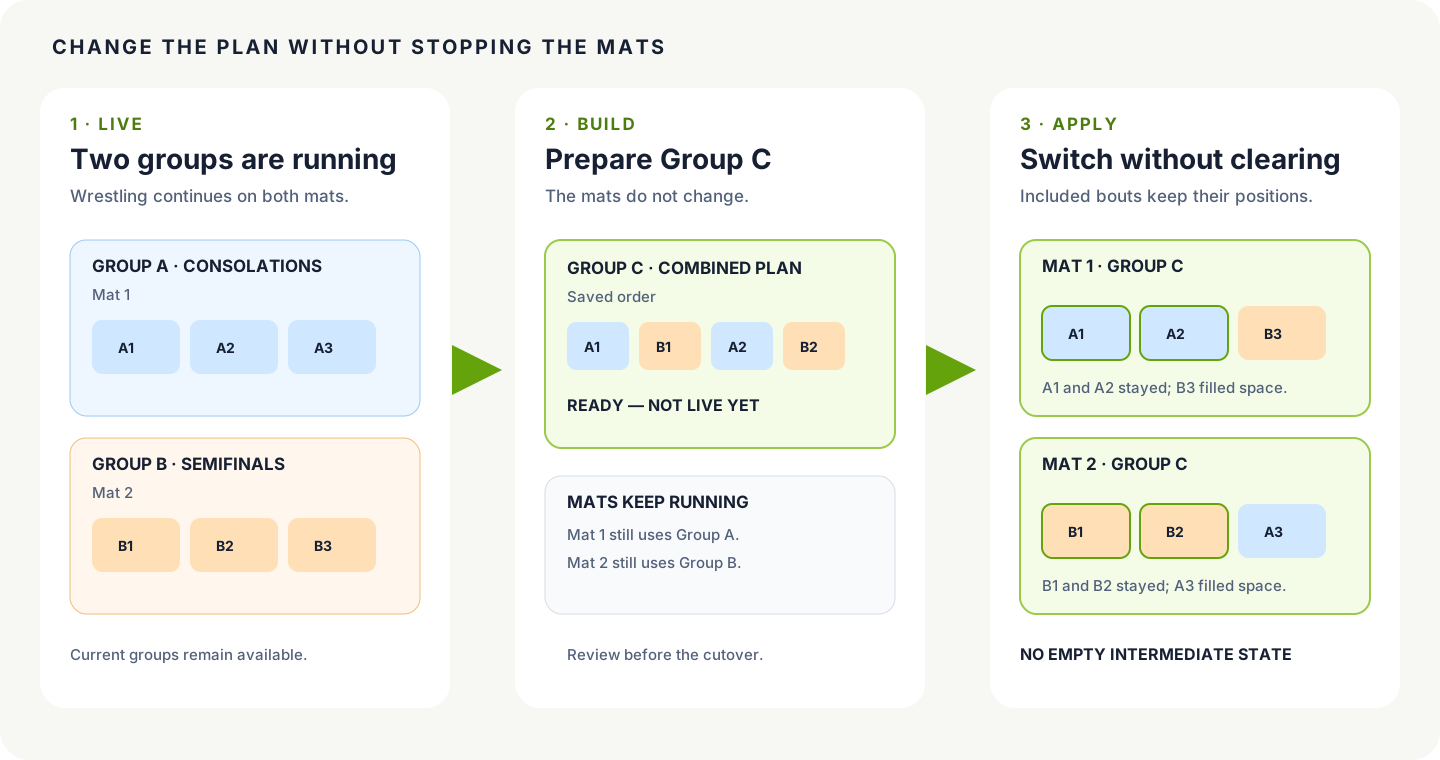
Preparing is planning. Choosing mats is the cutover. You can prepare the alternative while wrestling continues, inspect it, and decide when to use it.
When to combine groups
Section titled “When to combine groups”Use a combined rule when the work needs to be shared differently for the rest of the session. Common examples include:
- semifinals are backing up while consolation mats are moving quickly;
- one division needs access to more mats for the next round;
- two smaller groups should alternate across the same set of mats;
- you want a fallback plan ready before deciding whether to switch.
If you only need to move one waiting bout, use Move in the Mat Control Center instead. A new rule is for changing how mats share the work, not for relocating one specific match.
Prepare the combined rule
Section titled “Prepare the combined rule”Suppose Consolations runs on Mats 1–3 and Semifinals runs on Mats 4–5. Semifinals starts falling behind.
- Leave both current rules and all five mats running.
- In Match Publishing, choose Add, then Custom rule, and create a rule such as Consolations + Semifinals.
- Set its filters to include both segments.
- Choose Run… on the new rule. Check the Bout numbers and Queue steps, choose Not yet on the Mats step, and save.
A bout can sit in its original queue and the combined queue at the same time. Saving the combined queue does not change a mat or clear a waiting match. The alternative is ready while the original rules keep running.
Switch mats when you are ready
Section titled “Switch mats when you are ready”Choose Run… on the combined rule again, or choose Pull from another rule… for a mat in the Mat Control Center. On the Mats step, pick the mats that should pull from the combined rule, then choose how to treat what is already waiting:
- Keep what’s waiting; add new bouts. Every waiting bout keeps its place. New work from the combined rule fills in behind it.
- Replace what’s waiting. Waiting bouts go back to their queue and the mat refills from the combined rule.
Either way, started and finished bouts stay put. Run lists each mat with its waiting count before and after, so check that list before you press the button at the bottom.
A bout is only ever on one mat. If a bout in the combined rule is already waiting on another mat, it stays there. Use Move if you want it somewhere else.
What the old rules become
Section titled “What the old rules become”Switching mats does not delete the original rules. They stay saved, and you can point a mat back at one later with Pull from another rule….
Give each mat one rule at a time so the director and table crew see one clear list of upcoming work.
Before you confirm
Section titled “Before you confirm”Check three things:
- Mats: are these the mats that should pull from the new rule?
- Queue: does it contain both segments you meant to combine?
- Waiting bouts: with Replace what’s waiting, are the listed bouts safe to send back to their queue?
Then watch Run in the Mat Control Center after the switch.
Also covers: switch schedule · custom schedule · add plan or schedule · combined schedule