

Connect a Trackwrestling score clock
A connected physical score clock follows the time and score from Snapdown’s Table Scoring screen. Configure it in the left navigation under Devices → Score clock. On a narrow screen, open the Table Scoring menu first.
Score clocks are in beta and must be turned on for the event. Open Event Settings → Score Clocks; it offers Email support, so email support@snapdown.io and we’ll turn it on for that event. The Score clock row appears in Table Scoring once the event has it; turning it on doesn’t connect every table’s clock automatically.
For a monitor showing the audience scoreboard, use Devices → Scoreboard instead. For a camera, use Devices → Camera and follow Record bouts and offer live video.
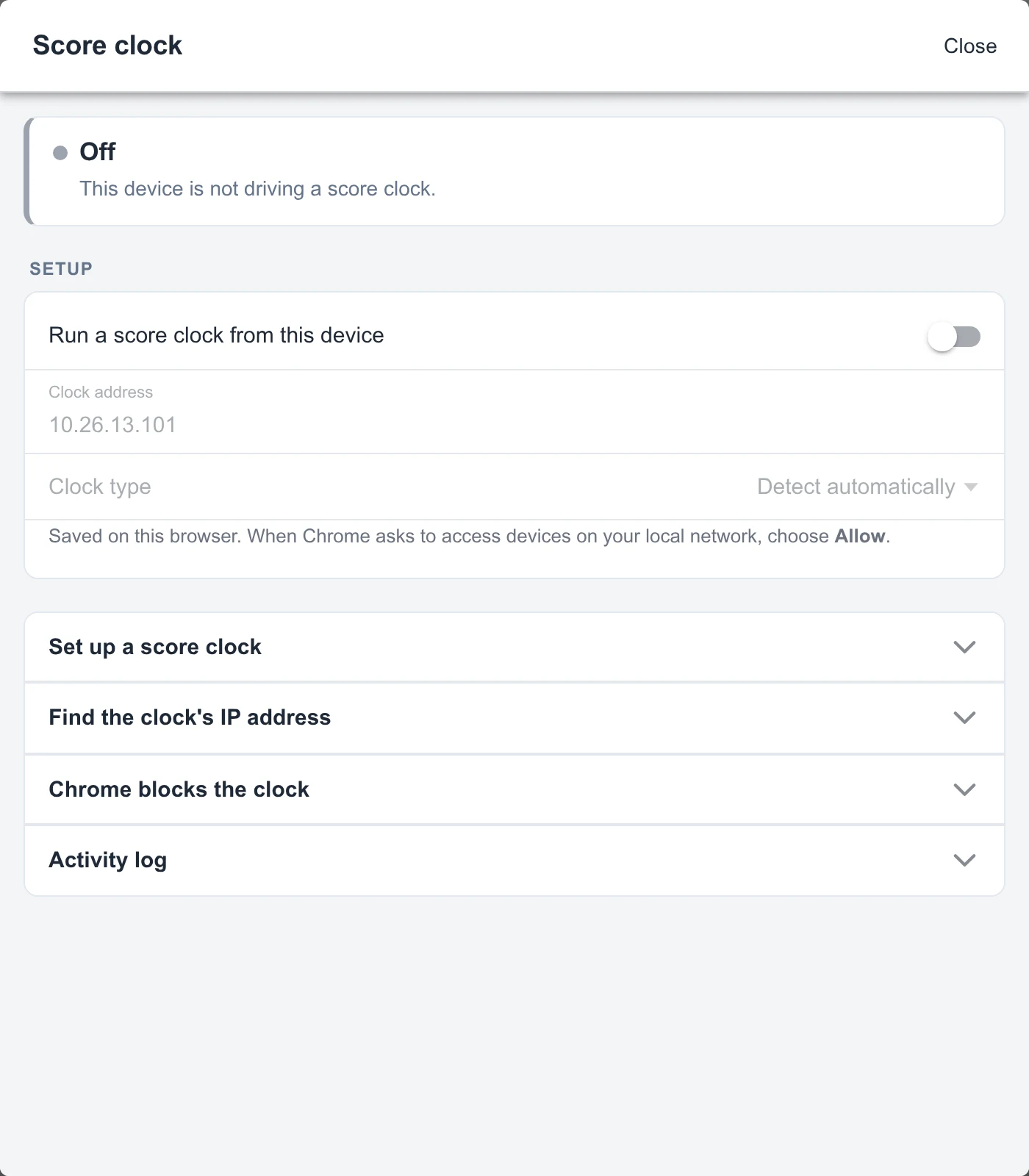
The panel starts with the connection off. Turn it on to enter your address and use Check connection.
Prepare the connection
Section titled “Prepare the connection”Use a scoring computer running Chrome, an Ethernet cable, and an Ethernet adapter if the computer needs one. Keep Wi-Fi connected for internet access. The clock type choices are Trackwrestling (model 3–5), Trackwrestling (model 6), Olimex (model 1), and Olimex (model 2). Test your actual clock and computer before event day.
- Connect the clock to the scoring computer with an Ethernet cable.
- Find the clock’s IP address. The Find the clock’s IP address section in the Score clock panel includes an Indee Innovations startup-display example. For that display, read down each column, then join the four numbers with dots. Use the address on your own clock.
- Give the computer’s Ethernet connection a fixed address on the clock’s network. For example, for a clock at 10.26.13.101, use 10.26.13.105 on the computer, subnet mask 255.255.255.0, and no gateway. Do not give the computer the same address as the clock or another device on that network.
Connect and test before the first bout
Section titled “Connect and test before the first bout”- Open Table Scoring, select your mat, and open Devices → Score clock.
- Turn on Run a score clock from this device.
- Enter the clock’s IP address in Clock address. Leave Clock type on Detect automatically.
- When Chrome asks for local-network access, choose Allow.
- Choose Check connection. If detection fails, check the address and browser permission before selecting a clock type manually.
- Open a practice bout and confirm the physical clock follows starts, stops, and score changes. With the bout clock stopped, Identify briefly flashes the scores so you can check which clock is connected.
- Use Sound horn (loud) only when everyone at the table is ready for it.
The connection settings are saved in this browser. Repeat setup on each scoring computer. During scoring, the Devices row shows connection status; open the panel for the last reply, update failures, and response time. Snapdown retries an unreachable clock, but check the actual display before relying on it.
Set the horn and display
Section titled “Set the horn and display”After Check connection reads the clock’s settings, Automatic period horn controls whether the physical clock sounds at the end of a period. This setting is saved on the clock. Olimex clocks do not offer it.
Where supported, Top number chooses a bout number, weight class, mat number, or nothing. Clock layout lets you read and change what each row displays. Choose Save to clock to apply a layout; it affects every controller using that clock. Restore original restores the layout Snapdown first read. Brightness adjusts the LEDs. Layout and brightness controls need a Trackwrestling clock whose replies the browser can read.
If the clock does not connect
Section titled “If the clock does not connect”- Chrome is blocking the clock: open the site-controls icon beside the address bar, then Site settings → Local network (or Local network access) → Allow. Reload Snapdown and choose Check connection again.
- Can’t reach the clock: check power, the Ethernet cable, the clock address, and the computer’s fixed Ethernet address.
- Clock type unknown: check the address and local-network permission. If replies remain unreadable, select the known clock type under Setup.
- Clock replies: Blocked: some firmware allows plain time and score updates but prevents Chrome from reading replies. Type detection, signed firmware, and the horn setting need readable replies.
The panel’s Chrome blocks the clock section offers Download Windows launcher for clocks with blocked replies. It opens a separate Chrome window with web security disabled so Snapdown can read the clock. Use that window only for scoring. A clock that passes Check connection in normal Chrome does not need the launcher.
For help, open Activity log in the Score clock panel and choose Send to Snapdown support or Download log. Include the event, mat, clock model, and what the physical display is doing when contacting Snapdown.
Also covers: Trackwrestling clock · Track clock · Indee Innovations clock · Olimex clock · score clock Ethernet · Devices menu