


You can change a tournament after publishing. The important choice is whether to keep the current schedule or replace it.
I need to swap wrestlers
- Open Brackets and edit the bracket’s wrestlers or lineup.
- Save the change and build the bracket if Snapdown asks you to.
- Open Match Publishing.
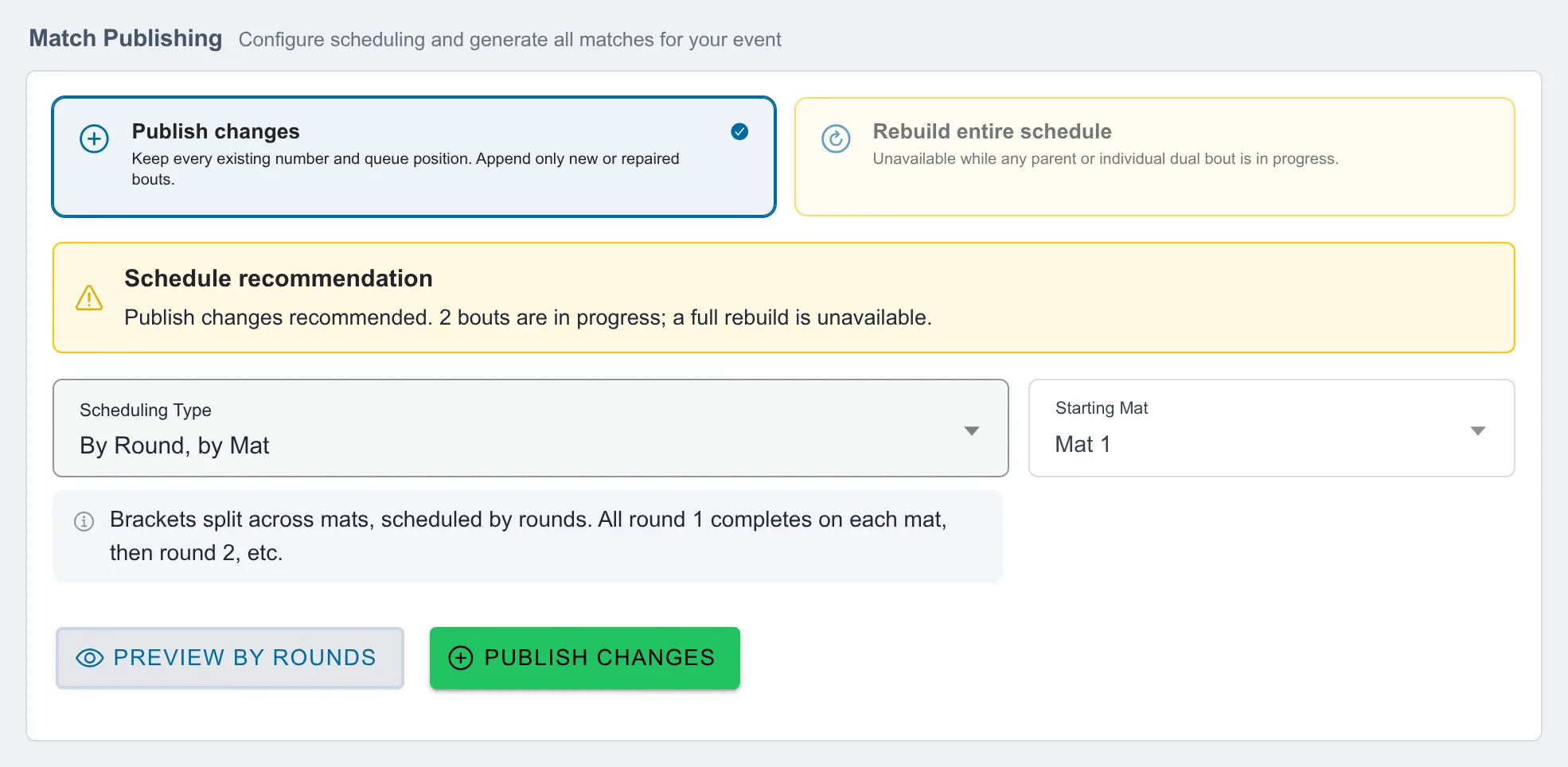
- In Auto Schedule, select Publish changes, then confirm Publish Changes.
Snapdown updates the participants while keeping the surviving bouts’ numbers and queue positions. Always verify the preview before publishing.
I added a wrestler or expanded a round robin
- Add the wrestler and select the new bracket size or format on Brackets.
- Build the changed bracket.
- Open Match Publishing and review the new bouts.
- In Auto Schedule, choose Publish changes.
Existing bouts keep their schedule. Newly created bouts are numbered and added to the end of their assignment group.
I added another bracket
Create the bracket, assign its wrestlers, and build it. Then open Match Publishing:
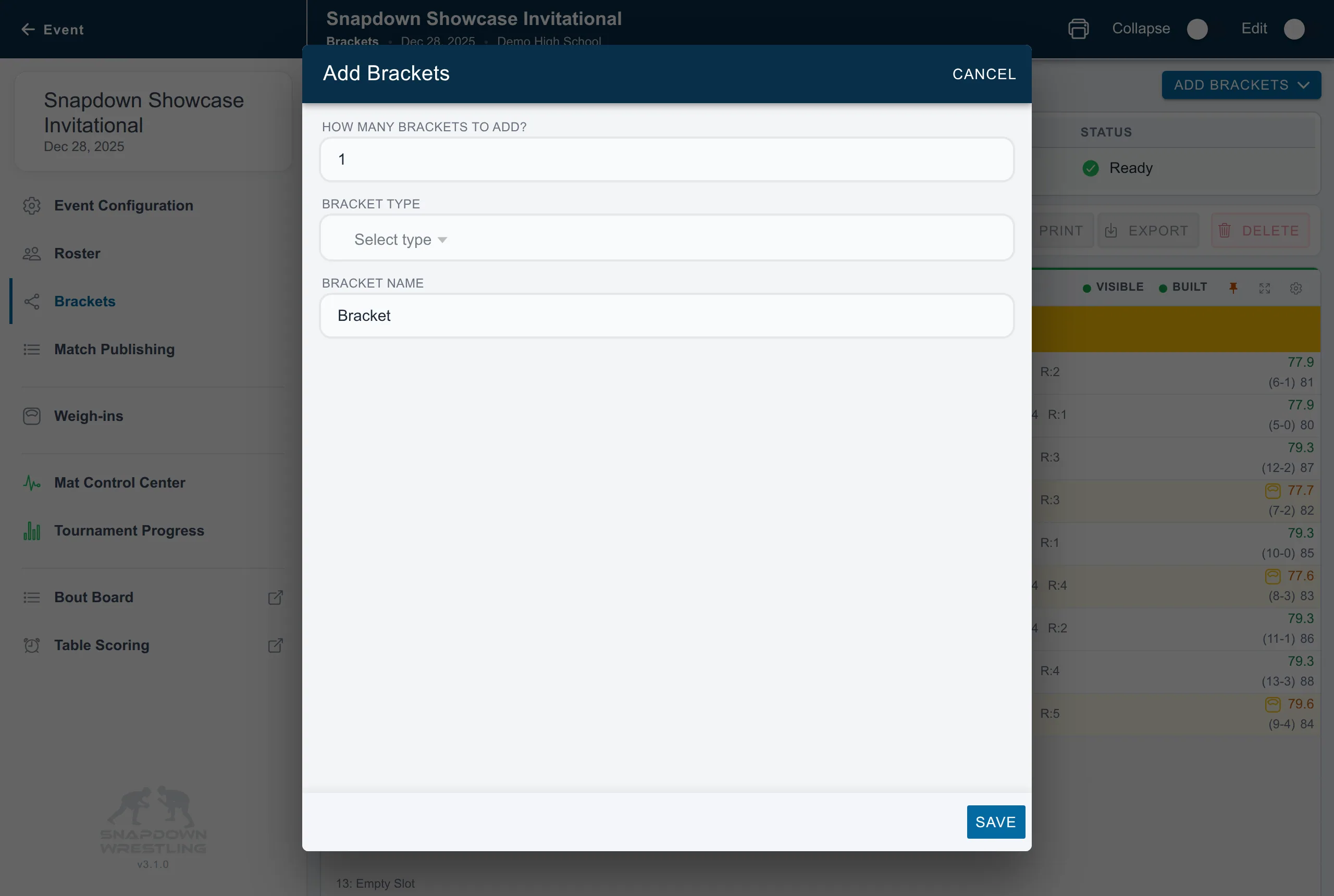
- Auto Schedule: select Publish changes. The new bracket’s bouts are appended without moving existing bouts.
- Custom Schedule: select the rule that should cover the bracket, choose Preview Numbering, and apply the numbering. Then choose Preview Assignment Group and Build & Publish Group.
When should I rebuild the entire schedule?
Use Rebuild entire schedule only when you intentionally want Snapdown to recalculate all bout numbers, mat assignments, and queue positions. It is usually appropriate before wrestling begins when you have made broad changes and do not need to preserve the published schedule.
Do not use a full rebuild as a routine way to add or repair one bracket. Snapdown disables it while a bout is in progress and warns you when completed work is involved.
How do I know the change is finished?
Before returning to the Mat Control Center, confirm that:
- the changed bracket no longer says it needs to be built;
- each new bout has a bout number;
- the new bouts appear in the intended assignment group; and
- the preview shows existing bouts retaining their numbers unless you deliberately chose a rebuild.
For initial setup, see Use automatic match scheduling across mats or Create a custom tournament flow and finals schedule.
Common repairs: