

You created a league. Setup comes in two parts, and keeping them straight is what saves you time over a season.
Season setup happens once. Teams, rosters, administrators, and defaults live on the league and carry across every event you run.
Event setup repeats for each competition, and it stays short, because your wrestlers are already in Snapdown by then.
New league operators usually discover this the hard way, by rebuilding their whole season setup for the second event. You never have to do that.
Before your first real event, ask for a practice one. Email support@snapdown.io and we will set up a test environment at no charge. Build some brackets, weigh a few wrestlers in, score a match, then add a wrestler after the matches are already published. One hour, once, and the whole season gets easier.
Season setup — do this once
1. Set your league defaults
Set the divisions, weight classes, and scoring rules your events will normally use. New events inherit all of it, and any single event can override what it needs to.
2. Add your teams
Create the teams that compete in your league. A team you add in September still has its roster in February.
3. Import the rosters
Load each team’s wrestlers into the league roster. They stay there for the whole season — this is the import you do once instead of once per event.
You can load every roster yourself, or let teams maintain their own.
4. Add your league administrators
Add the people who help you run the league, so they can manage teams, rosters, and events without going through you.
5. Lay out the event schedule
Create the events that make up your season. Every competition you run is an event inside the league.
For each event — the short routine
6. Create the event
Set the date, location, mats, and competition format. Most of it arrives pre-filled from your league defaults.
7. Choose who is competing
Here is where a league event really diverges from a standalone tournament. Your wrestlers already exist, so this step is selection rather than import.
Add full teams. Pick which teams are attending and their current rosters come with them. Right choice when most of a squad is competing.
Select a fixed attendance list. Once coaches confirm exactly who is coming,
export the current league roster, delete everyone who isn’t attending, fill in
the event-specific columns, and upload it back. Leave the wrestler_id column
alone. That column is what ties each row to a wrestler who already exists.
A wrestler can also compete for a different team in one event without touching the league roster, which is how a big club splits into two scoring squads for a sectional.
Select wrestlers for a league event covers all three.
8. Add event staff
Add the table workers and any extra administrators for this event. Give each person only the access their job needs — a table worker with admin rights can change a bracket by accident at 9am.
9. Build the competition
- Build individual weight-class brackets
- Choose a matchmaking format and generate matchups
- Build a single dual or dual tournament
- Create a custom tournament flow and finals schedule
Plenty of youth leagues run one broad division all season, generating matchups from whoever shows up, then switch to fixed weight classes for the championship. Your league can do both.
10. Schedule the mats
- Use automatic match scheduling across mats
- Schedule divisions in separate sessions or mat groups
11. Get your screens ready
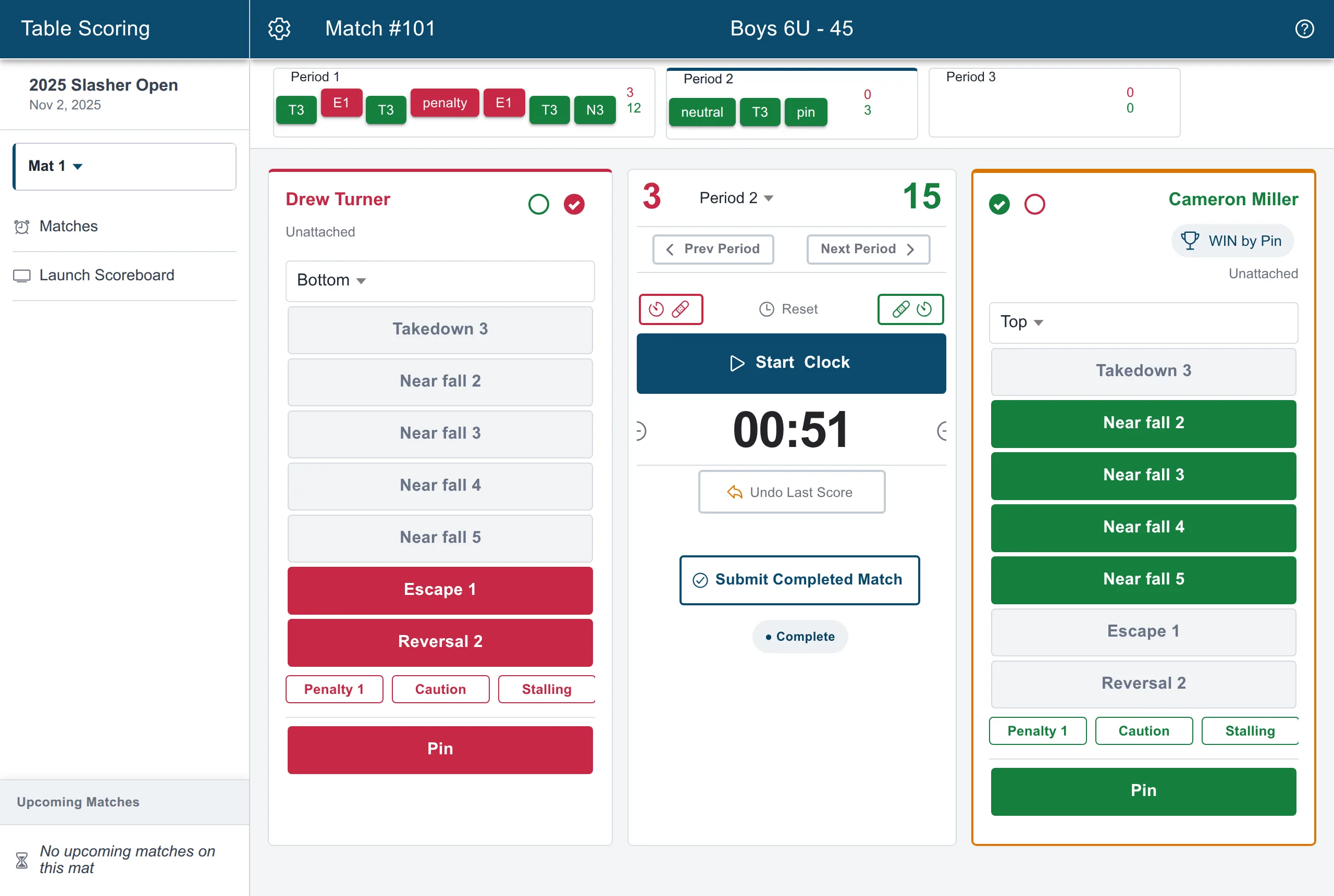
Snapdown runs on screens: a device at each scoring table running Table Scoring, a display somewhere visible for the Bout Board, and your own device for the Mat Control Center.
We recommend a laptop or Chromebook at each table, with an external monitor or TV facing the mat so wrestlers, coaches, and the families in the stands can read the score. That second display is what makes a mat feel properly run.
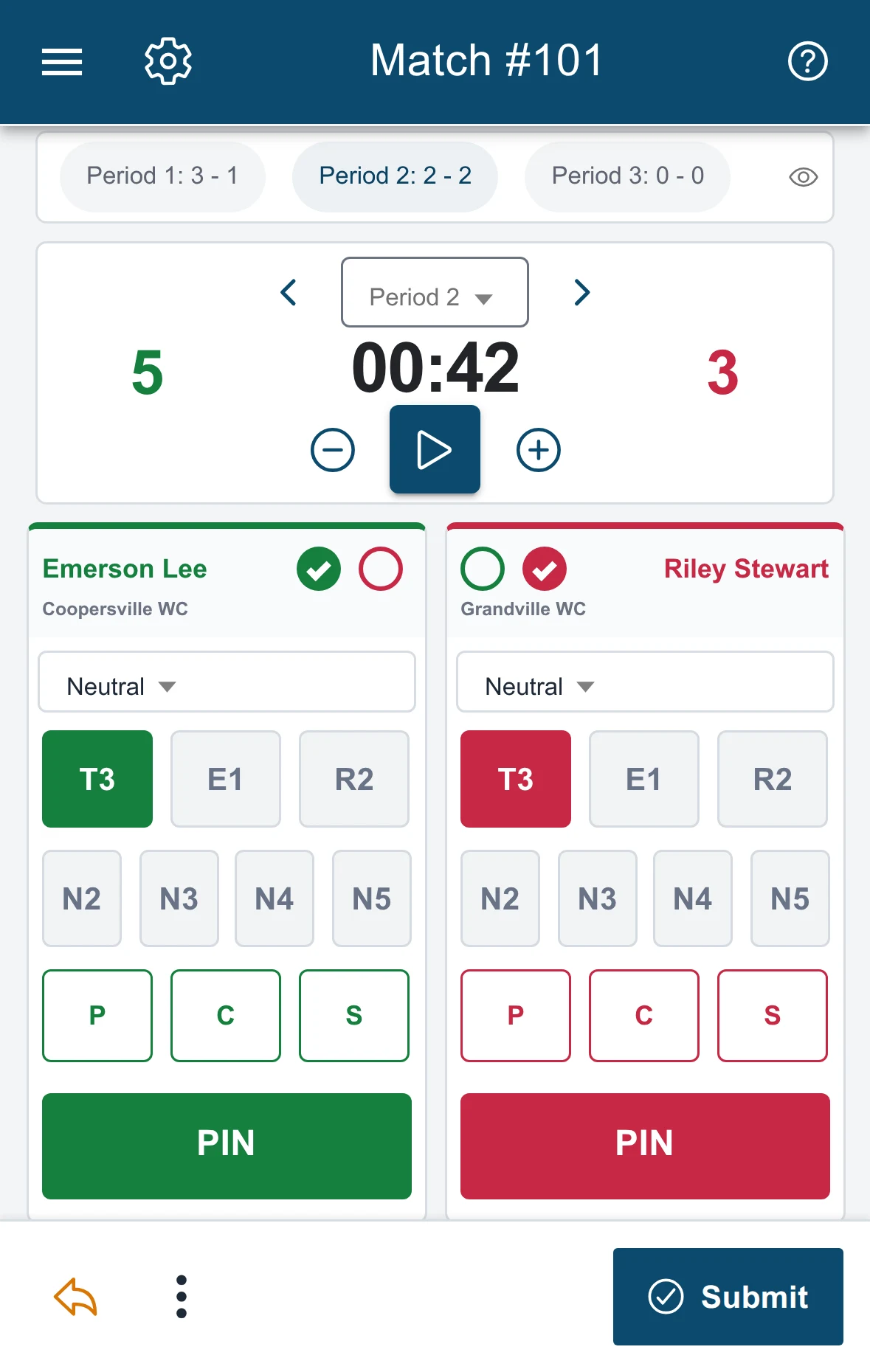
A phone works too. If you don’t have a laptop for every table, Table Scoring has a purpose-built phone layout rather than a shrunken desktop one, and the event runs correctly either way. What you give up is the mat-side display, not any scoring ability.
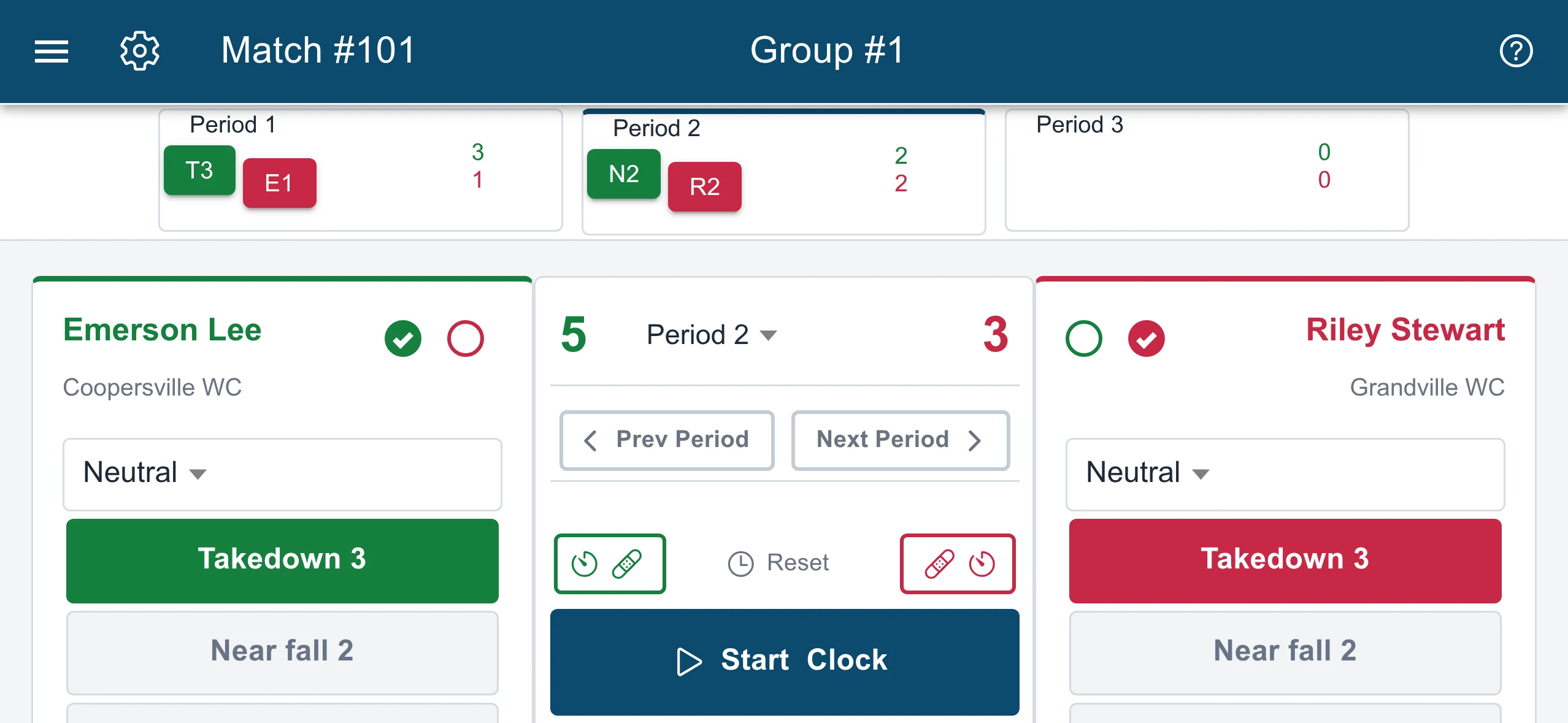
Sideways, the phone shows the full board with each period’s scoring along the top.
Leagues usually land in between, with laptops and screens at the regular venue and a parent’s phone covering an extra mat. Build toward the full setup over a season instead of waiting for it.
Get your staff signed in ahead of time so nobody is resetting a password at 7am, and check that the venue’s network really does reach the tables. This gets routine fast, since league venues rarely change.
Print sheets if you want paper as a backup. Nothing requires it.
12. Weigh in and run
Weigh-ins settle who is actually competing, so clear your no-shows before anything gets built for real. Then publish the matches, load your mats, and keep them fed.
13. When something changes
Something always does. All four of these are routine:
- Add a late wrestler after publishing
- Fix a duplicate wrestler or wrong weight class
- Change brackets after publishing matches
- Add an exhibition match or dual
Then run this section again for your next event. By the third one it takes minutes.
Bringing outside teams in
A team from another Snapdown league can join an event through a league link, and a one-off visiting team can be added straight to your league. See Should I create a league or a standalone tournament?.
Collecting money
Leagues that collect registration payments should connect a payout account before the first event of the season.
- Set up payouts with Stripe
- How registration payouts work
- When you get paid
- Refunds and event cancellations
Questions
Email support@snapdown.io.