


Use Auto Schedule when you want Snapdown to distribute ordinary bracket work across your active mats. If your event needs separate sessions, a dedicated finals mat, or hand-built sequencing, use Custom Schedule instead.
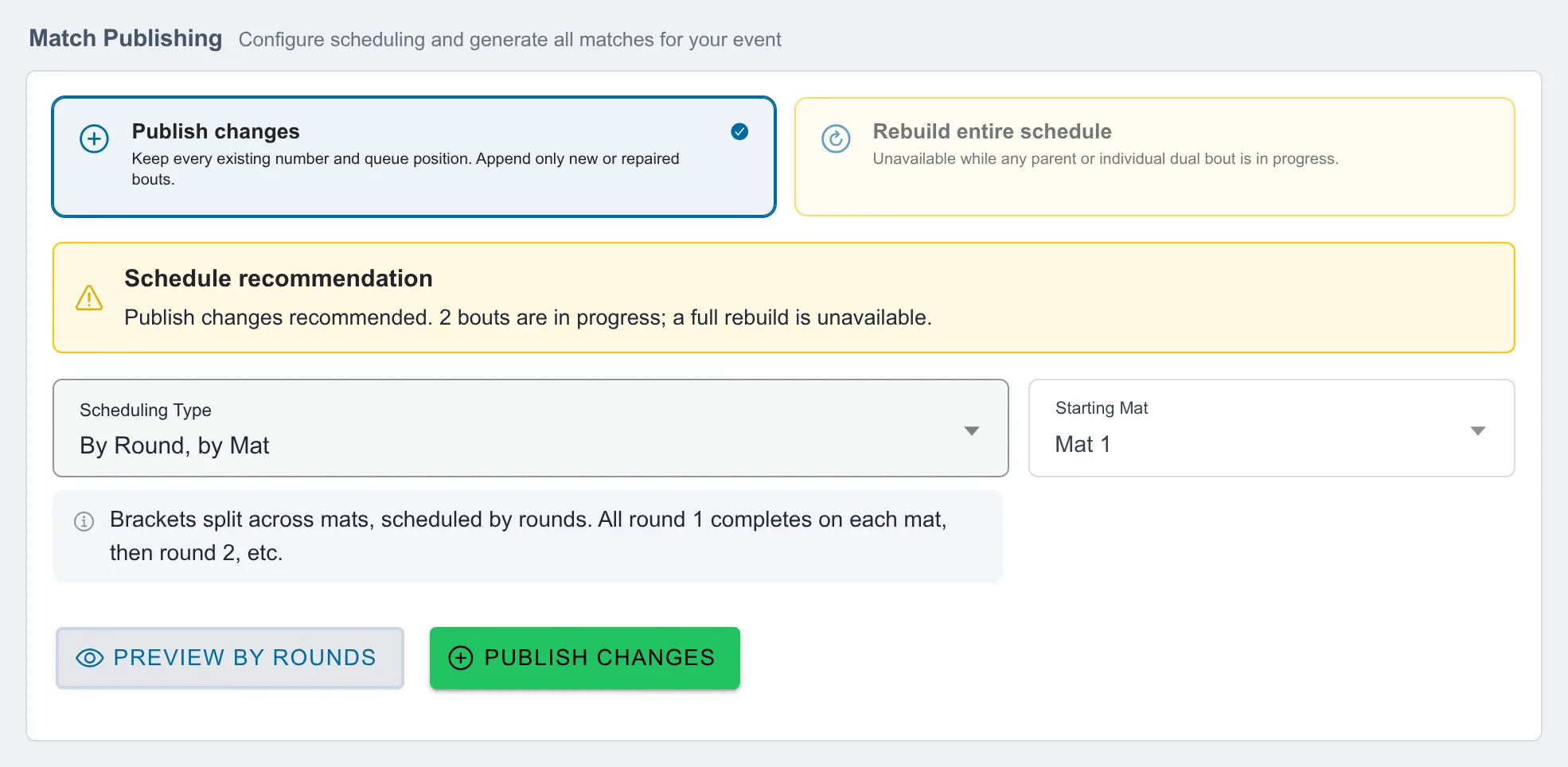
Publish the first schedule
- Configure the mats available for the event.
- Create your brackets and assign their wrestlers.
- Open Match Publishing and choose the scheduling type.
- Review the mat workload and choose Preview by Rounds.
- Choose Publish All Matches.
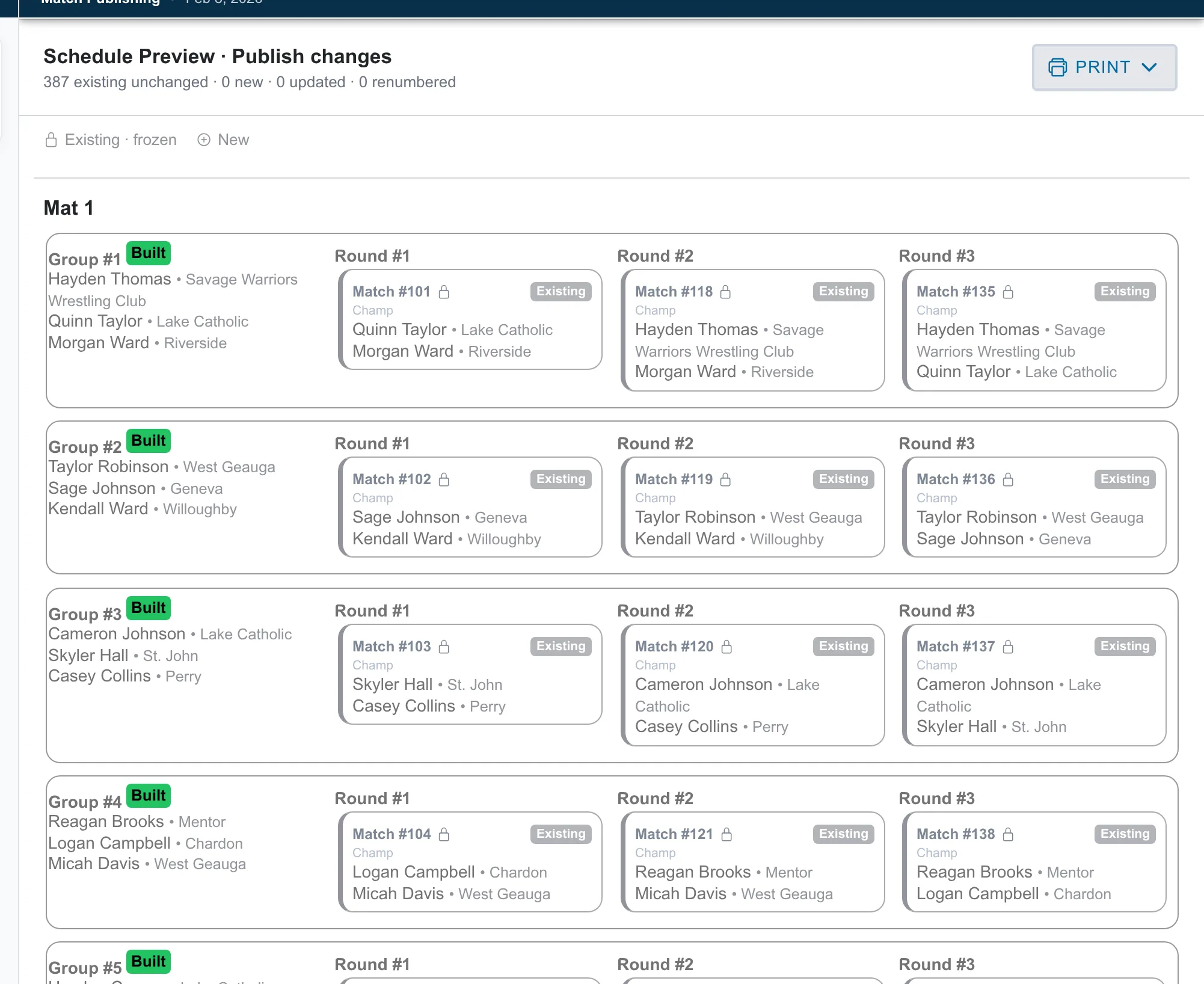
Change a published schedule
After changing wrestlers or brackets, return to Match Publishing. Choose Publish changes to keep existing bout numbers and queue positions while appending new work. Choose Rebuild entire schedule only when you intend to replace all generated numbering, mat assignments, and queue order.
See How do I change brackets after publishing matches? for swaps, round-robin expansion, new brackets, and the final verification checklist.