


Divisions decide how wrestlers are separated. Each Individual division then has its own Competition setting: Fixed weight classes or Automatic grouping. One tournament can therefore group its younger divisions automatically while keeping traditional weight classes for its high school divisions.
Open the event in Event Admin, go to the Event Dashboard, and select Manage Divisions.
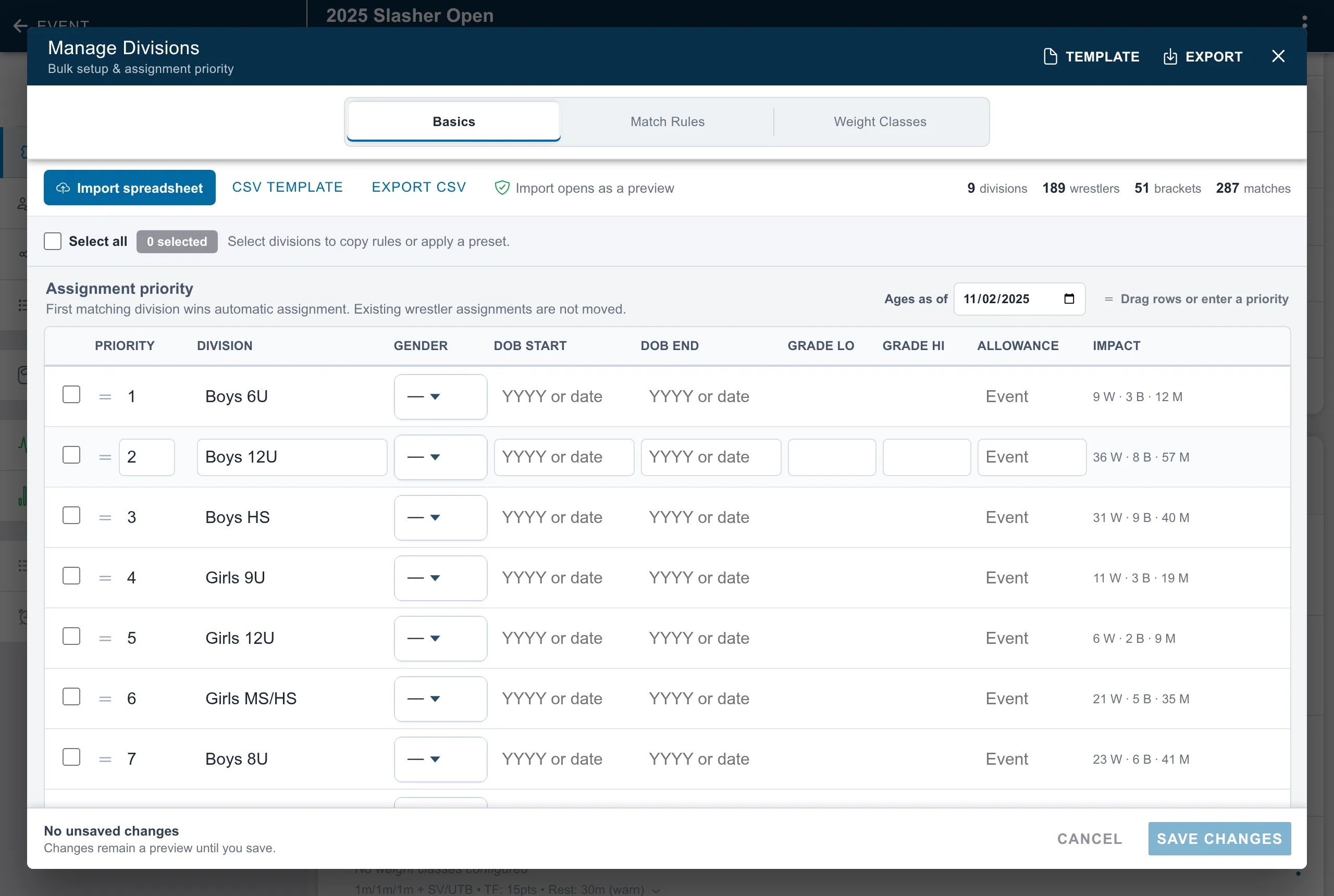
Choose the competition type for each division
On the Basics tab, choose independently for every Individual division:
- Fixed weight classes uses the predefined classes stored on that division, such as 106, 113, or 120. A wrestler in this division needs a weight-class assignment before a bracket can be built.
- Automatic grouping builds matches or groups from the wrestlers who actually enter or weigh in. Snapdown can consider current weight, age, grade, rank, gender eligibility, team separation, and previous opponents.
Automatic grouping controls which wrestlers are eligible for generation. The matchup format—individual matches, preset groups, placement mini-brackets, placement round robins, or weight-only grouping—is chosen when you generate the competition. See Choose a matchmaking format and generate matchups.
What the Default row does
The locked Default row supplies the starting competition type and rules for new or copied divisions. It does not force every division to use the same type, and changing it later does not overwrite existing division choices.
Create and order divisions
Select Add division, then enter the division name and its eligibility criteria. A division can use any combination of:
- gender;
- earliest and latest date of birth;
- lowest and highest grade; and
- a division-specific weigh-in allowance.
Set Ages as of to the date on which ages should be calculated. The age hints beside the date-of-birth fields update from that date, which helps verify that the cutoff produces the intended age group.
Drag divisions into assignment order or enter their priority number. When a wrestler qualifies for more than one division, the first matching division wins automatic assignment. Reordering the rows does not move wrestlers who are already assigned.
The Impact column shows how many wrestlers, brackets, and matches currently belong to each division. Use it before changing a division with active event data.
Add weight classes
Open the Weight Classes tab and expand a fixed division. Add classes one at a time or paste a list separated by spaces, commas, or new lines. Their order controls how they appear in registration, roster tools, and bracket setup.
Select multiple divisions to copy a class list from one division to the others. Choose Replace list to make the destinations match the source or Add / update to preserve other destination classes.
Automatic divisions do not require weight classes. If an automatic division already has classes, Snapdown stores them but does not use them while the division remains automatic. They are available again if you switch the division back to fixed weight classes.
Set match rules and allowances
The Match Rules tab stores the wrestling style, period lengths, overtime structure, technical-fall threshold, and other scoring rules for each division. Select several divisions to apply a preset or copy all or part of one division’s rules to the others.
An empty Allowance value inherits the event’s weigh-in allowance. Enter a
number to override it for that division. An explicit 0 means that division
has no allowance; it is different from leaving the value empty.
Import, export, and review before saving
Use Template or CSV template to start a spreadsheet, and Export to download the current setup. Importing a spreadsheet opens a preview first. It does not save immediately, so review conflicts, overlap warnings, and the impact totals before selecting Save changes.
All edits in Manage Divisions remain a preview until you save the workspace. Closing or cancelling discards the preview.
Change a division after wrestlers or brackets exist
Changing a division from fixed weight classes to automatic grouping—or back again—does not silently delete or rebuild existing brackets. It changes how new registrations are collected and how future competition is built.
Before publishing matches, review the affected roster and rebuild or reconcile the competition intentionally. After matches have been published or scored, review the impact counts first and follow Change brackets after publishing matches.
League events
League events begin with their league’s divisions, competition types, and rules. You can adjust the event copy without changing the league defaults used by other events. See Configure your league.